On this page
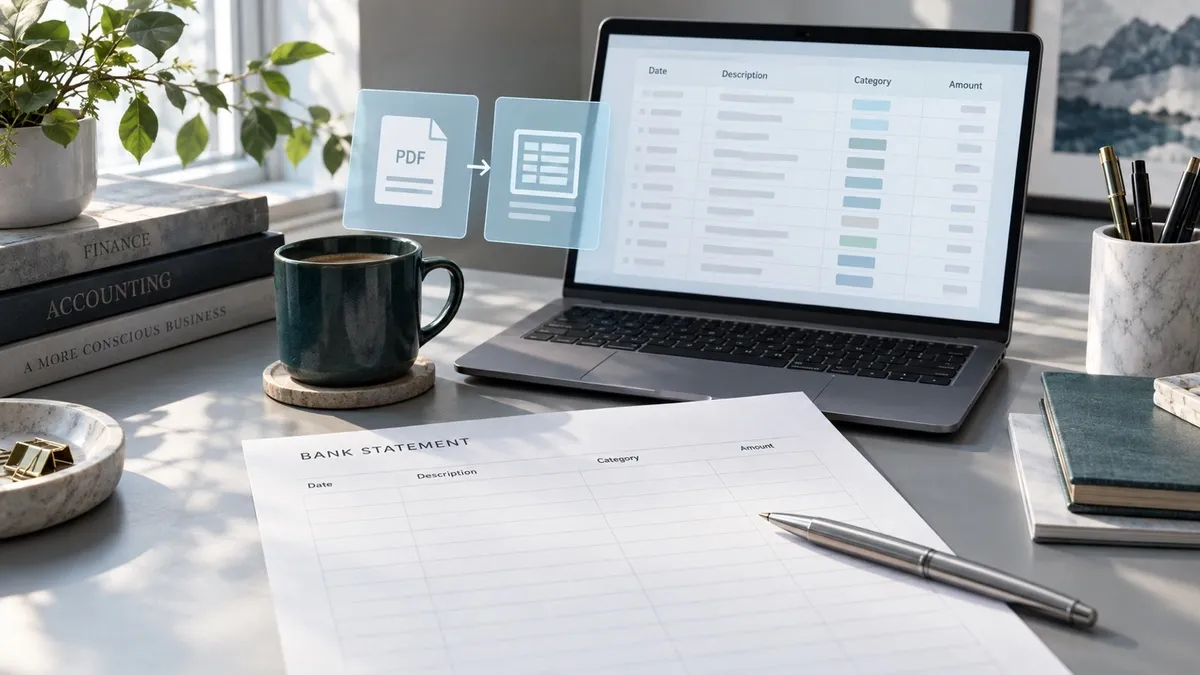
Bank statement to Excel software extracts transaction dates, descriptions, amounts, and balances from a PDF into spreadsheet rows. Choose a route that handles your statement format, then check the result against the original document before importing it into your bookkeeping workflow. A useful export lets you trace each row to its source and resolve uncertain fields without guessing.
For a small bookkeeping team, the practical goal is a transaction table another person can review. This guide shows how to choose an extraction route, structure that table, and check it with a worked example. You can then use the complete build prompt below in Atoms to create your own statement-review workspace: transaction rows with source references, an exception queue, correction notes, and an approved export.
Put the converter's output into a workflow that fits your team. With Atoms, describe the review screens and rules in plain language, build the app, and refine it through conversation. Keep the extraction method you choose, and build the review experience around it.
Turn converted statements into a review workspace with source references, exceptions, and approved exports.
Choose software around your statement and review workload
Start by checking whether the bank already offers a transaction download. If an authorized CSV or spreadsheet export covers the same account and dates, it can spare you the PDF extraction step. Compare its period, opening and closing information, and transaction coverage with the statement you need to process.
When the PDF is the available source, inspect it before choosing a converter. Try selecting and copying a transaction description. Readable copied text suggests a text-based PDF. An image-only scan needs an OCR-capable route: optical character recognition reads the characters from the image. Even a text-based PDF can produce misaligned rows, so this first check helps choose a route without settling the accuracy question.
These are documented options for different workloads, rather than a performance ranking:
| Route | Documented capability | What to check on your sample |
|---|---|---|
| Microsoft Power Query PDF connector | Imports detected PDF information for loading or transformation | Connector availability in your installation, table boundaries, and wrapped descriptions |
| Parseur | Describes bank-statement extraction, Excel/CSV exports, and email/API automation | Your bank layout, amount direction, field mapping, and recurring-file handling |
| DocuClipper | Describes scanned/digital statement conversion, spreadsheet exports, and reconciliation | Row coverage, reconciliation exceptions, and the exported structure |
Microsoft's PDF connector documentation explains file selection and the Navigator's Load or Transform Data choices. It also identifies multi-line rows as a possible cleanup task. Check your host's supported capabilities before adopting it as the team's standard route.
Parseur's bank statement converter describes transaction extraction and recurring ingestion. DocuClipper describes bank-statement conversion with reconciliation. Those descriptions establish a shortlist to test; your own statements establish whether the output is usable.
For occasional files, straightforward review and export may be enough. For repeated client work, look for a visible exception queue, separate account handling, and a correction history. Evaluate the time needed to approve the output alongside the time needed to extract it.
Define an Excel output you can trace back to the PDF
Set the columns before you convert bank statement to Excel. Otherwise, a converter's convenient default can become a spreadsheet that is difficult to check or import.
Preserve the original date text, description, amount text, and debit/credit label. Put standardized values in separate fields. For example, a normalized date can use an unambiguous year-month-day format while the original date stays beside it. Keep account identifiers as text so a spreadsheet does not remove leading zeros.
Add a statement identifier, source page, and source row or another stable locator. A reviewer should be able to find the original transaction from the exported record. If your converter does not provide a locator, add page references during review and keep the source file linked in your internal working folder.
A practical review workbook has three parts:
- Raw extraction: the unchanged output from the converter.
- Reviewed transactions: normalized fields, source references, corrections, and review status.
- Export: approved rows arranged for the destination system.
Keep a reason for corrections that change dates, amounts, or direction. “Changed 10.00 credit to debit after checking page 2” is more useful than an unexplained edit. The reviewer can then distinguish a deliberate correction from an accidental overwrite.
Choose one amount convention and state it in the workbook. The example below uses positive credits for money entering a deposit account and positive debits for money leaving it. A credit-card liability statement can use a different balance convention; define that convention before applying any formula.
Convert, then verify before you import
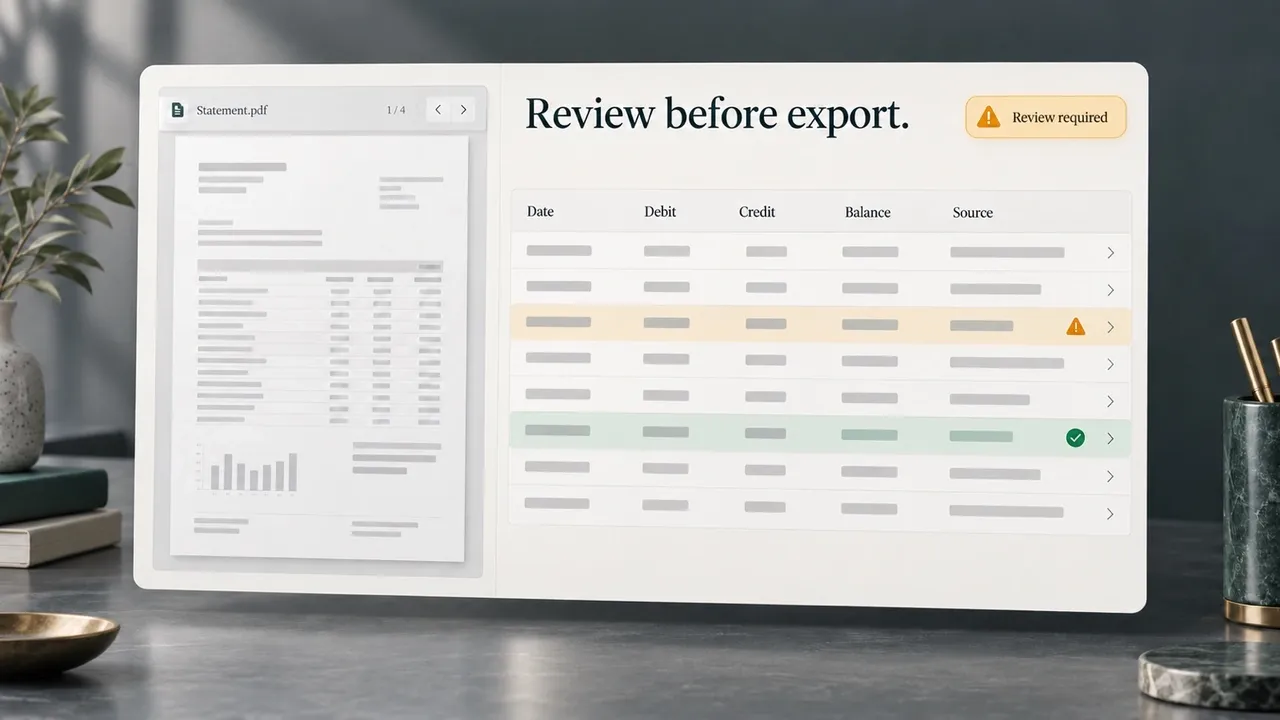
AI-generated editorial concept; not a screenshot of a deployed app.
Keep extraction, review, and approval as separate actions. That makes it easier to catch a file that converted successfully but still contains unresolved data.
- Confirm the file can enter the chosen processing path. Establish who is allowed to handle it and check where it will be processed. For an online converter, examine recipients, storage locations, retention, deletion, access controls, and any downstream integrations. Verify how deletion works for uploaded files and generated exports, including backup-retention terms where relevant. Use synthetic or suitably redacted samples while these questions remain unresolved.
- Extract the full statement. Include every page for the intended account and period. Preserve the original file and the first export. For Power Query, select the PDF, inspect the detected information in Navigator, and use Transform Data when cleanup is needed.
- Inspect the page boundaries. Compare the last transaction on each page with the first transaction on the next. Check repeated headers, continued descriptions, and balances that appear between tables. Join description lines only after confirming that they belong to one transaction.
- Normalize dates and numbers. Resolve the source's date order, decimal separator, and debit/credit convention explicitly. Review ambiguous dates against the statement period. Preserve the original text beside each normalized field.
- Run statement controls. Compare row coverage, credits, debits, and opening-to-closing movement. Inspect individual transactions as well as totals, particularly corrected fields and page transitions.
- Resolve exceptions and approve the export. Give every flagged row a reason, an owner, and a status. Export approved rows only when the statement is complete and the remaining uncertainties have been resolved.
For recurring work, group files by account and statement period. If two files overlap, compare their source identities before treating repeated transactions as duplicates. Two legitimate payments can share a date and amount. Those values alone are insufficient grounds for deleting a row.
Keep the review workbook with the source and a short approval record. When an import later looks wrong, this package helps locate whether the problem arose during extraction, normalization, or destination mapping.
Test the export with a worked balance check
Use a small statement with known expected rows to evaluate any bank statement pdf to Excel workflow. The following data is synthetic and demonstrates the checks; it is not a conversion result from any named product.
Assume a deposit account opens at 1,000.00 and contains these transactions:
| Source reference | Example date | Description | Debit | Credit |
|---|---|---|---|---|
| Page 1, row 1 | 2026-09-02 | Customer receipt | 0.00 | 250.00 |
| Page 1, row 2 | 2026-09-03 | Office purchase | 40.00 | 0.00 |
| Page 2, row 1 | 2026-09-04 | Account fee | 10.00 | 0.00 |
The expected output has three transaction rows, credits totaling 250.00, debits totaling 50.00, and a closing balance of 1,200.00:
If the fee is incorrectly exported as a credit, the calculated closing balance becomes 1,220.00. The discrepancy is 20.00 because the mistake both removes a debit and adds a credit. Check the source direction when a balance difference seems larger than the transaction itself.
In Excel, name the reviewed transaction table Transactions, with numeric columns Credit and Debit. On a separate Controls worksheet, enter the opening balance in B2 and the statement's closing balance in B3. A difference formula in B4 is:
For this example, the expected difference is zero. The formula assumes the stated two-decimal deposit-account convention and numeric cells. Validate the workbook's table name and column mapping before using it on another export.
A zero difference is one check, not a completeness certificate. If a converter omits a 75.00 credit and a 75.00 debit, net movement stays unchanged. Both missing transactions still matter. Compare extracted row coverage with the source and inspect the descriptions, dates, and direction even when the balance formula passes.
Where the statement supplies transaction counts or debit/credit summaries, compare them independently. Where it does not, review the source page by page and record the expected rows. Separate accounts and currencies before totaling them. A useful exception queue identifies the specific mismatch: missing row, ambiguous date, unreadable amount, uncertain direction, or unexplained duplicate.
These checks validate the extraction against the statement. Matching those transactions to the entries in your books is a separate reconciliation task.
Build your statement review workspace with Atoms
Build a workspace around the review process you have just defined. Atoms turns natural-language instructions into working apps and internal tools. Describe the pages, data fields, and interactions, review the generated app, and ask for specific changes. You can export its code or sync it to GitHub for further development.
For a bookkeeping team, a useful build brief connects each screen to a visible action:
- Statement inbox: group files by account and period so reviewers choose the right source.
- Transaction review: display raw values, normalized values, and source references side by side; record a reason for each correction.
- Exception queue: show missing dates, uncertain direction, and balance differences; assign each issue to a reviewer.
- Approval and export: show the remaining issues and allow final export after review is complete.
These are the requirements for your app. The PDF/OCR extraction engine is a separate choice: connect your selected converter or import its CSV output. Test that integration's bank layouts and accuracy, and verify permissions, storage, and deletion paths before using real statements.
Copy this build prompt into Atoms
Copy the full prompt below, choose Build my review workspace, and paste it into Atoms to begin. The button opens the existing Atoms entry flow; copy the prompt separately.
Copy the complete prompt below, open Atoms, and build the statement-review workflow your team needs.
Review the generated workspace with these known failures, then adapt its column mapping and approval rules to your team. You can browse Atoms-built projects for interface ideas while keeping the statement schema and checks specific to this workflow.
Conclusion
Choose bank statement to Excel software by testing the statements your team actually receives and the review process it needs. Start with known expected rows, preserve source references, and combine balance controls with transaction-level checks. Keep unresolved files in review until their exceptions are closed.
Bring the build prompt to Atoms and create a review workspace with your team's columns, exception rules, and approval steps. Begin with the supplied synthetic statement, check the generated behavior, and connect the chosen extraction route after its data handling and output are verified.
Build your team's statement-review workspace with clear exceptions, correction history, and approved CSV exports.
Frequently asked questions
01Q1: Can scanned bank statements be converted to Excel?
An OCR-capable converter can provide a route from scanned pages to spreadsheet rows. Parseur and DocuClipper describe scanned-statement support. Test your scan quality and bank layout, then check the extracted dates, amounts, direction, and row coverage against the source.
02Q2: Why can the closing balance match when transactions are missing?
Missing credits and debits of equal value cancel out in the net movement. The balance check still passes, so transaction counts and source-row checks provide independent evidence of completeness.
03Q3: Should I export XLSX or convert a bank statement to CSV?
Use a workbook when the review package needs multiple sheets, formulas, and approval notes. Use CSV when the destination needs a plain transaction table. Confirm its required column order, date format, amount convention, and encoding before import. A CSV export should contain the approved values rather than depend on workbook formulas.
04Q4: Does conversion finish bank reconciliation?
Conversion creates structured records, and statement controls check them against the PDF. Reconciliation to your books also requires matching those records to ledger entries and investigating differences.
05Q5: What should I do with an unreadable amount or date?
Flag the field, retain its source reference, and ask a reviewer to check a clearer original or another authorized record. Keep the row unresolved until the value is established. Record the corrected value and its reason before approving the export.
