
On this page
Choose a genogram maker that lets you edit people and relationships, explain every symbol with a legend, and export a readable copy. For a class assignment, start with the required notation and a small practice family before entering your own information. Build the family structure first, check each connection against your notes, then prepare a separate copy for sharing. A chart with names hidden can still reveal who the family is.
With Atoms, you can build a web app around this workflow: an editable family map, a symbol legend, and separate working and sharing views. Start with fictional exercise data, then use the build brief below to shape the app around your assignment or class.
Create a genogram workspace with editable relationships and a separate sharing preview.
What a genogram maker needs to do
A family genogram records family connections and, when relevant to the task, emotional relationships or health information. The drawing needs to distinguish these layers. A line linking two partners means something different from a line describing conflict between them; a shared household is another fact to record separately.
GenoPro's genogram symbols reference describes common conventions, including squares for males, circles for females, and distinct links for biological, adopted, and foster children. Its layout guide also notes that conventions vary. Use the notation your instructor or organization requires, label any additions, and keep a legend with the exported chart. Record identity from the information provided by the person or assignment; a name or appearance is not a basis for choosing a symbol.
Before choosing software, make a tiny sample with a partner connection, a child connection, and one relationship label. Move a person and check whether the links remain attached. Export the sample, reopen the editable file, and make one correction. This gives you a useful test of the workflow before you commit a larger record to it.
| Requirement | A practical check before you start |
|---|---|
| Suitable notation | Find the symbols required by your assignment and explain them in the legend. |
| Editable structure | Move a person and change a connection without redrawing the whole chart. |
| Clear uncertainty | Add an explicit “unknown” note without assigning a guessed relationship. |
| Usable export | Open the exported file and read the labels at the intended print size. |
| Controlled sharing | Check what a recipient can view, edit, download, or access through a link. |
| Recoverable work | Save an editable source and test reopening it. |
Choose a tool around your assignment
Several established tools can draw genograms. The right starting point is the requirement you need to satisfy: a dedicated relationship library, a shared classroom canvas, or a format your instructor already uses. The descriptions below come from official product pages checked on October 1, 2026; they are advertised capabilities, rather than results of a hands-on comparison.
EasyGenogram by Qwoach describes drag-and-drop relatives, family and emotional connections, editable details, and PNG, JPG, SVG, and PDF export. Its student access offer depends on a teacher or professor registering for a classroom account. If you are looking for a free genogram maker for coursework, check that condition before planning around it. EasyGenogram's official page explains the offer.
Creately presents genogram templates, a dedicated symbol library, relationship lines, notes, collaboration, and several export formats. It is worth evaluating when you want a diagram alongside supporting notes. Check the current plan's export and sharing controls with your practice file. The official genogram page describes the workflow.
Miro presents a genogram template on a shared canvas, with shapes, connectors, context notes, and collaboration. It is a candidate when your class already works on shared boards. Check how you will preserve your required legend and deliver the final file. See Miro's genogram workflow.
If your course specifies a tool or file format, follow that requirement first. If it leaves the choice open, use the sample test above to compare your options. “Free to start” and “includes the export I need” are separate questions; confirm both before adding a full family record.
Build the chart from a short fact list
Organize the information before arranging symbols. You need a list of people and a list of connections, with enough context to check each one later. Give each person a unique working ID so that similar names do not cause accidental merges.
For each person, record the display label, generation, required details, and any information that is unknown. For each connection, record the two IDs, the relationship type, and the source of that information. In coursework, the source might be the supplied scenario. In other settings, use the documentation approach required by your organization.
Start with a fictional practice family
Use this invented example to test the drawing sequence:
- A1 and A2 are married and are the biological parents of C1.
- B1 and B2 are married and are the biological parents of C2.
- C1 and C2 are married and are the biological parents of D1 and D2.
- D1 is older than D2. No emotional relationship or health information is supplied.
The expected structure has three generations: A1, A2, B1, and B2 on the upper row; C1 and C2 on the middle row; and D1 and D2 below them. D1 appears before D2 in sibling order. Each child connection must lead to the correct parent pair. The absence of emotional information should remain visible in the notes as “not supplied”; it does not establish that relationships are close, distant, or conflicted.
Add people, then connect them
Place the people by generation and add the known partner connections. Next, connect children to their recorded parent relationships. Check the source list after each family branch. For multiple partnerships, make the sequence and parent connections explicit so that position on the canvas does not carry all the meaning.
Add adoption, fostering, separation, or other distinctions only when the information supports them and your notation explains them. If you know that someone is a caregiver but their legal or biological relationship is unknown, record the known caregiving role and the unresolved question separately. That keeps a useful fact without turning it into an unsupported parent-child connection.
Add context and a legend
Add only the context needed for the assignment. When an emotional relationship is part of the record, preserve who reported it and any relevant date in supporting notes. A relationship description can change over time or differ between people; keep the source clear enough to revisit it.
The legend should explain every symbol and line style that appears. Read the exported chart without the editor open: can you distinguish a partner connection from a child connection, and a family connection from an emotional one? If two meanings look the same, change the notation or add a clear label.
Check structure before adding polish
Review the chart against the fact list while corrections are still easy. Read each connection as a sentence: “C1 is the child of A1 and A2.” If that sentence differs from the source, fix the connection even if the diagram looks balanced.
Use a separate review pass for unknown information. Look for a template's prefilled dates, names, or relationship labels that survived editing. Remove sample details that do not belong to your record. Check for duplicate people created while adding branches, and make sure that a line crossing another line does not look like a junction.
Keep the responsibilities clear:
| Part of the record | What a person needs to confirm |
|---|---|
| People and IDs | Each record refers to the intended person; no duplicate or accidental merge remains. |
| Family connections | Each link matches the supplied facts and the chosen notation. |
| Emotional labels | The label has a recorded basis and is relevant to the assignment. |
| Missing information | Unknowns remain unknown, with questions recorded for follow-up. |
| Final interpretation | Any assessment follows the relevant teaching or professional process. |
Software can help draw and organize the information. The record still needs a person to confirm its facts and interpret it in context. For a student exercise, the immediate goal is a traceable diagram that another reader can understand.
Prepare a separate copy for sharing
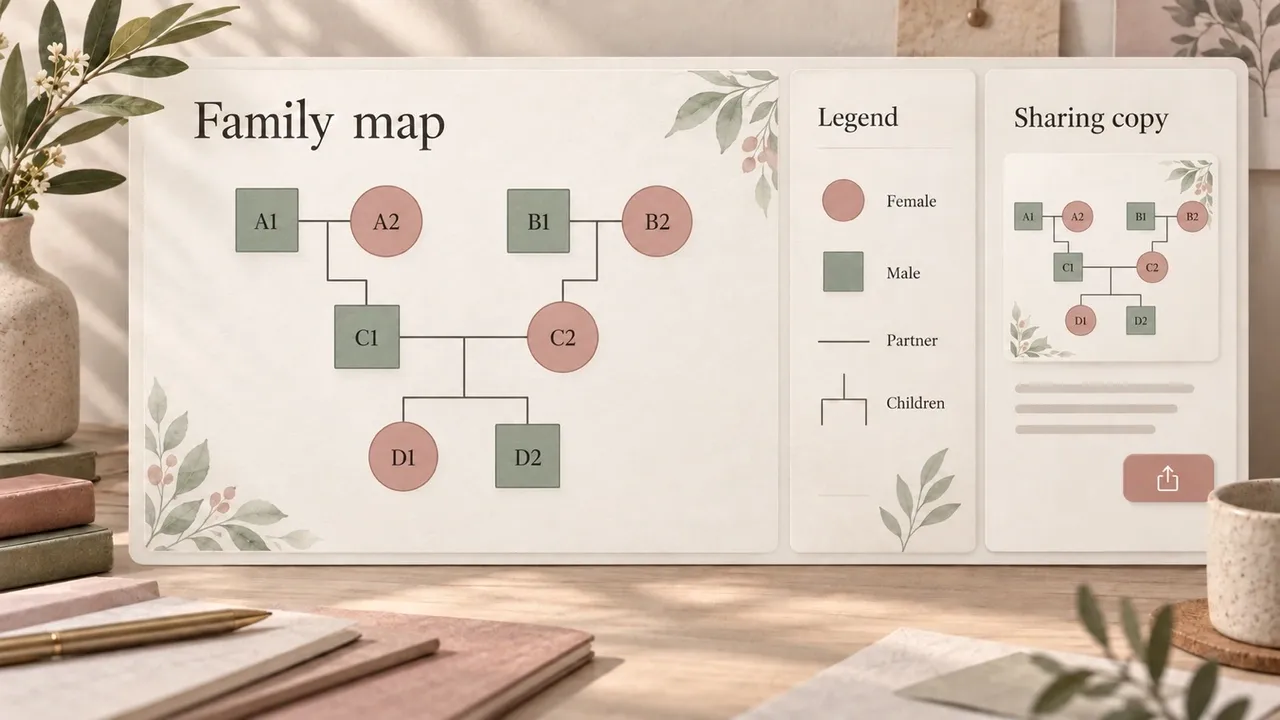
AI-generated editorial concept; not a screenshot of a deployed app.
Decide what the recipient needs before exporting. A tutor checking diagram structure may need different detail from a person reviewing a working record. Make a copy for that purpose and keep the editable master in its approved location.
Replace unnecessary names with neutral IDs, and review dates, places, notes, filenames, and attached material. If you keep a key connecting IDs to names, store it separately from the shared chart. Also consider the structure itself: an unusual combination of family relationships or events may be recognizable to someone who knows the family.
The distinction matters. The UK Information Commissioner's Office explains that pseudonymization separates identifying information from the resulting data and should not be confused with anonymization. Its guidance is currently under review following legislation changes. The practical point for this workflow is that replacing names reduces what a reader sees; it does not establish that a chart is anonymous. Follow your course or organization's requirements for real personal information. See the ICO's pseudonymization guidance.
Inspect the actual export. If it is a PDF or SVG, look for notes, labels, or metadata that the sharing view was meant to remove. If you share a board link, use the intended recipient permissions and check what that recipient can access. For a public demonstration, use a wholly fictional family, as in the practice example above.
Save the editable file and the reviewed export as separate deliverables. Reopen both, check the legend and label size, and give the export a filename that identifies the assignment without disclosing unnecessary personal information. A correct editor view is only the starting point for checking what you will send.
Build your genogram app in Atoms
Use Atoms' AI App Builder to turn the workflow into an application you can edit. Describe the people, connections, diagram, and sharing steps in plain language; review the generated app, then ask for specific changes. A class can put its required notation and checking process into the same workspace, while a student can keep the people list and chart together.
Atoms provides the building workflow behind that app:
- App generation from a brief: describe the forms, screens, and interactions you want the app to contain.
- Visual iteration: refine the chart layout, legend, and people editor by selecting elements and describing changes.
- Custom workflow development: spell out the relationship fields, review checks, and export behavior for the generated application.
- Code review and further changes: use the AI Coding Assistant to refine the generated implementation.
Copy the following brief, use Build my genogram app to open Atoms, and paste it into the builder. The button opens the normal Atoms entry; copying the prompt is a separate step.
Copy this brief into Atoms to build your family map, legend, and review workflow.
Review the generated app with the fictional sample: move C1, confirm that both parent connections stay correct, edit D1's label, and check the sharing export. Change an ID to one already in use to test the duplicate check. Ask Atoms to fix any result that differs from the supplied facts. Before using real family information, review the app's storage, access, and sharing arrangements through your course or organization.
Conclusion
Choose a tool by testing the notation, editable source, and export your assignment requires. Build from a fact list, check every connection, and review a separate sharing copy. To keep those steps in one application, bring the brief to Atoms and build a genogram workspace with your own people editor, legend, and review checklist.
Build a genogram app around your own coursework, review checklist, and sharing needs.
Frequently asked questions
01Q1: How many generations should I include?
Use the number required by your assignment. The example here uses three so you can practice connecting grandparents, parents, and children. If information is missing, record the gap and ask your instructor how to represent it.
02Q2: Can I make a genogram in a general drawing tool?
Yes, if you can create the required symbols, keep connections clear, add a legend, and deliver the accepted format. Test editing and export first. A dedicated relationship library may save you from drawing each line style manually.
03Q3: What should I do when accounts of a relationship differ?
Keep the source of each account clear in supporting notes. Ask how your course or organization expects differing accounts to appear. Avoid silently replacing one person's description with another's.
04Q4: Which file should I submit?
Submit the format your instructor requests and keep an editable source for corrections. Open the submitted file independently to check that labels, line styles, and the legend survived export.
