On this page
A useful AI-generated site or presentation starts with a real user decision—not with a generic request to “make something beautiful.” This guide shows a practical workflow for education, food access, conservation, community support, cultural, and legal-aid nonprofits.
What you can make: a focused result designed to help a visitor understand the mission and choose a credible next action.
What to prepare: an audience, accurate source material, one primary action, and an approved visual direction.
What the result looks like: start with Code for Tomorrow, a CMS-verified example built with Atoms.
Start now: open the Nonprofit Website Builder and adapt the verified prompt below.
1. Start with a finished example

The CMS prompt behind this example was:
The example is a starting point, not proof that every visible fact, integration, payment path, review, outcome, or piece of availability is production-ready. Before using an AI-generated result publicly, replace demonstration details with approved information and test every action.
2. Decide what the visitor or audience should do
The primary goal is to help a visitor understand the mission and choose a credible next action. Choose one leading action and make secondary actions support it. If every button competes equally, the page or deck may look complete while giving the audience no clear direction.
Write one sentence before generating:
Use that sentence to remove sections that do not support the intended decision.
3. Prepare accurate source material
Gather these inputs before generation:
- one-sentence mission and target community
- current programs and eligibility details
- verified impact metrics and reporting period
- donation platform and fund-use explanation
- volunteer roles, contact owner, governance, and required policies
Keep an explicit list of unknowns. AI can propose structure and draft language, but it should not silently fill missing business facts, metrics, legal claims, availability, prices, testimonials, or integrations.
4. Use a prompt that defines the job
A stronger prompt defines the audience, desired action, content modules, constraints, and unknowns. It leaves visual room for the system while preventing important facts from being fabricated.
Use the builder for this scene
5. Generate and review the first version
- Open the relevant Atoms Use Case page.
- Replace every bracketed field in the reusable prompt.
- Generate a first version.
- Review the opening screen or first three slides before polishing details.
- Check whether the audience, subject, and primary action are immediately clear.
- Replace placeholders and generated facts with approved source material.
- Refine one requirement at a time rather than restarting with a vague prompt.
Treat generation as the beginning of editing. A polished visual result can still contain incorrect facts, dead links, inaccessible text, or a confused user journey.
6. Use a structure matched to the task
A practical starting structure is:
The exact number of pages or slides is less important than the sequence. Each section should answer the next question the audience naturally has.
7. Learn from six real examples
Code for Tomorrow
Original prompt
Code for Tomorrow: connect the education mission to concrete programs and volunteer or support paths.
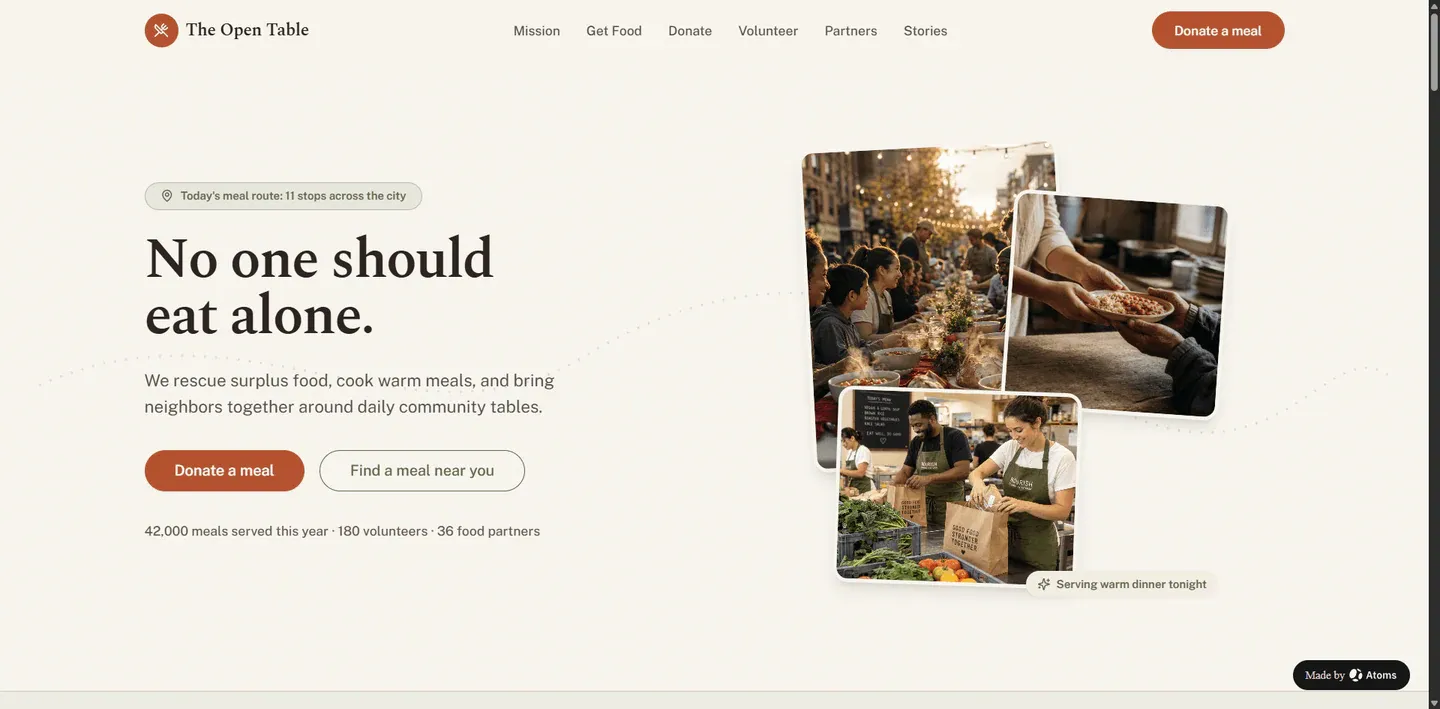
The Open Table
Original prompt
The Open Table: make local service information and eligibility easier to find than organizational history.
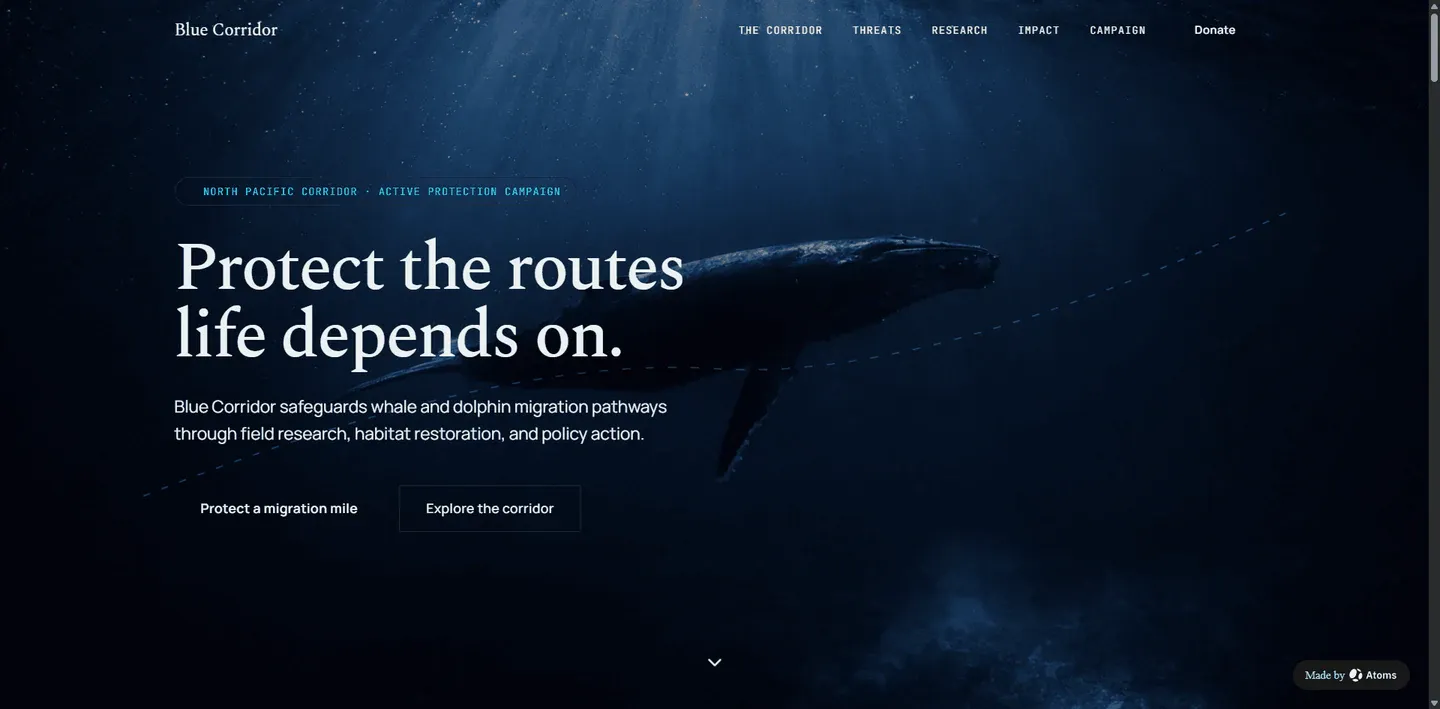
Blue Corridor
Original prompt
Blue Corridor: separate conservation goals, field programs, evidence, and ways to participate.
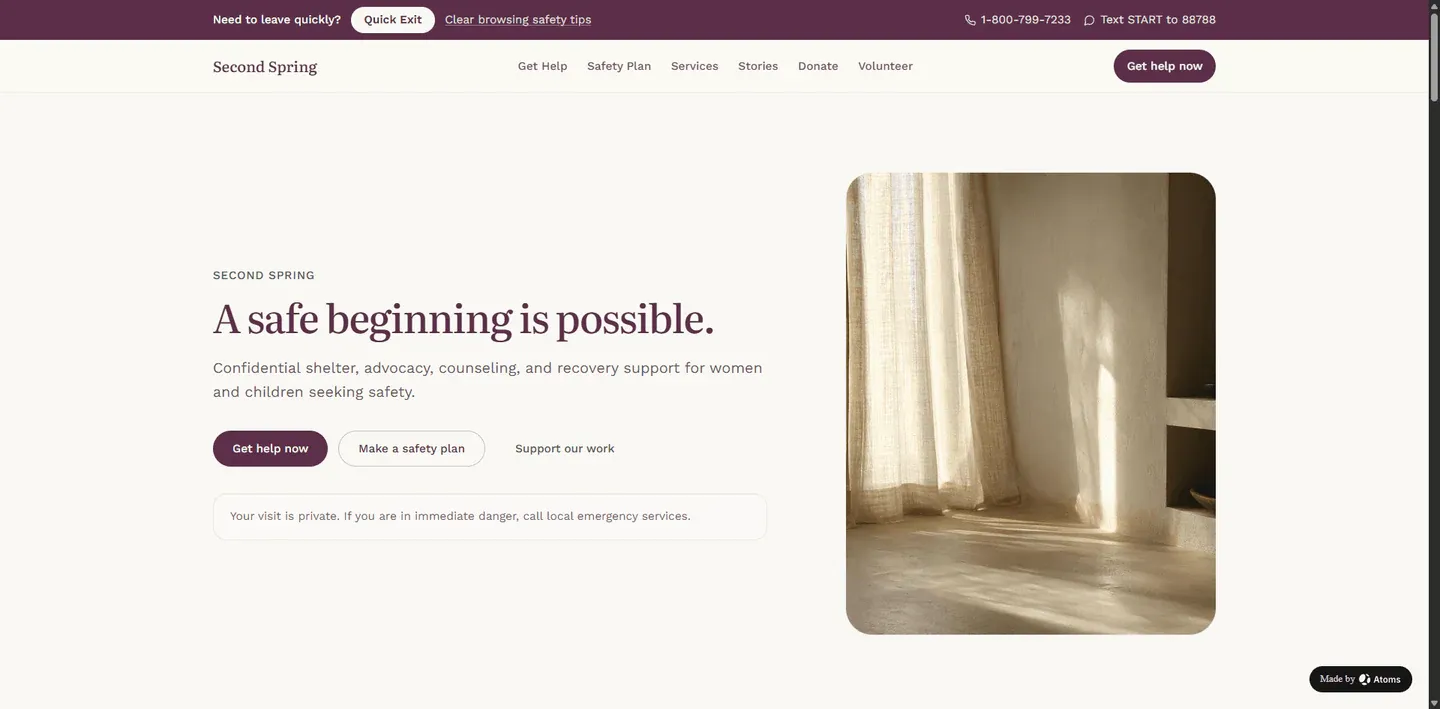
Second Spring
Original prompt
Second Spring: explain the community served without exposing sensitive beneficiary information.
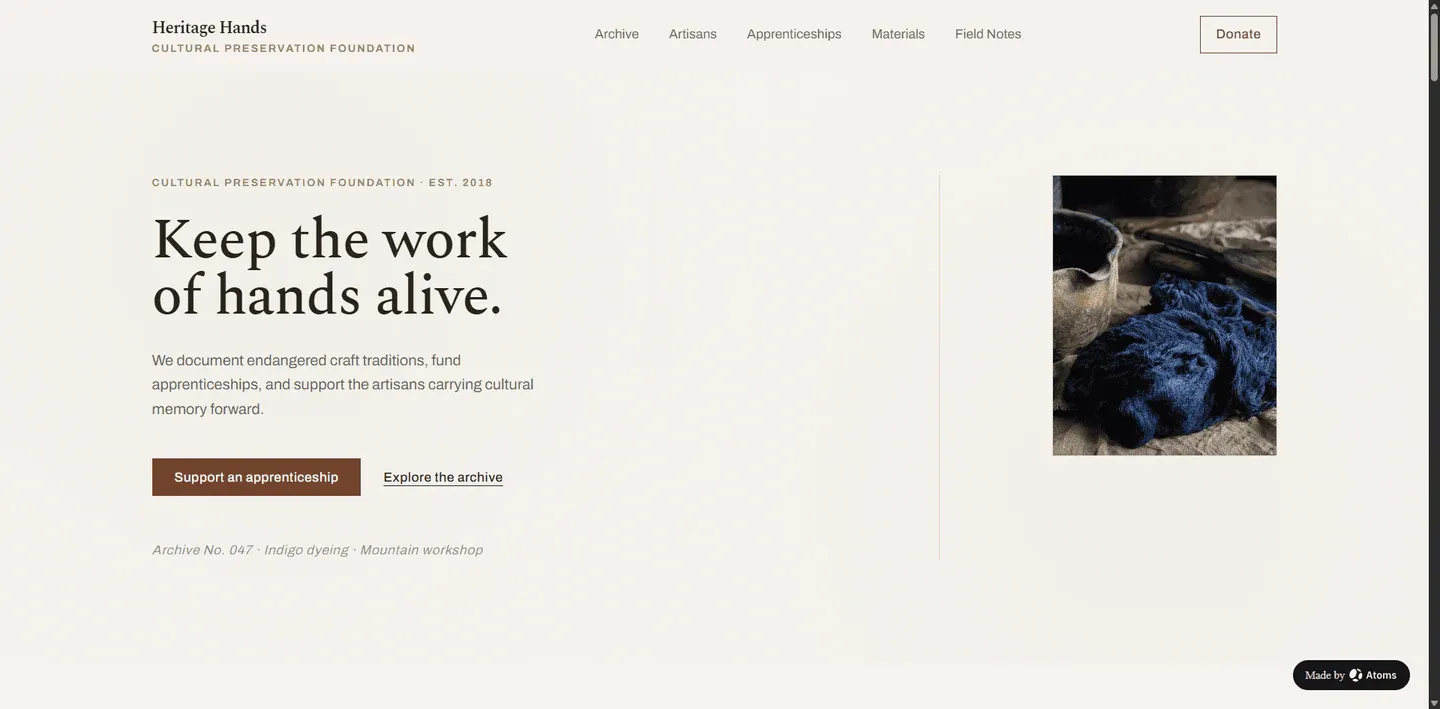
Heritage Hands
Original prompt
Heritage Hands: organize cultural programs, events, collections, and supporter actions.
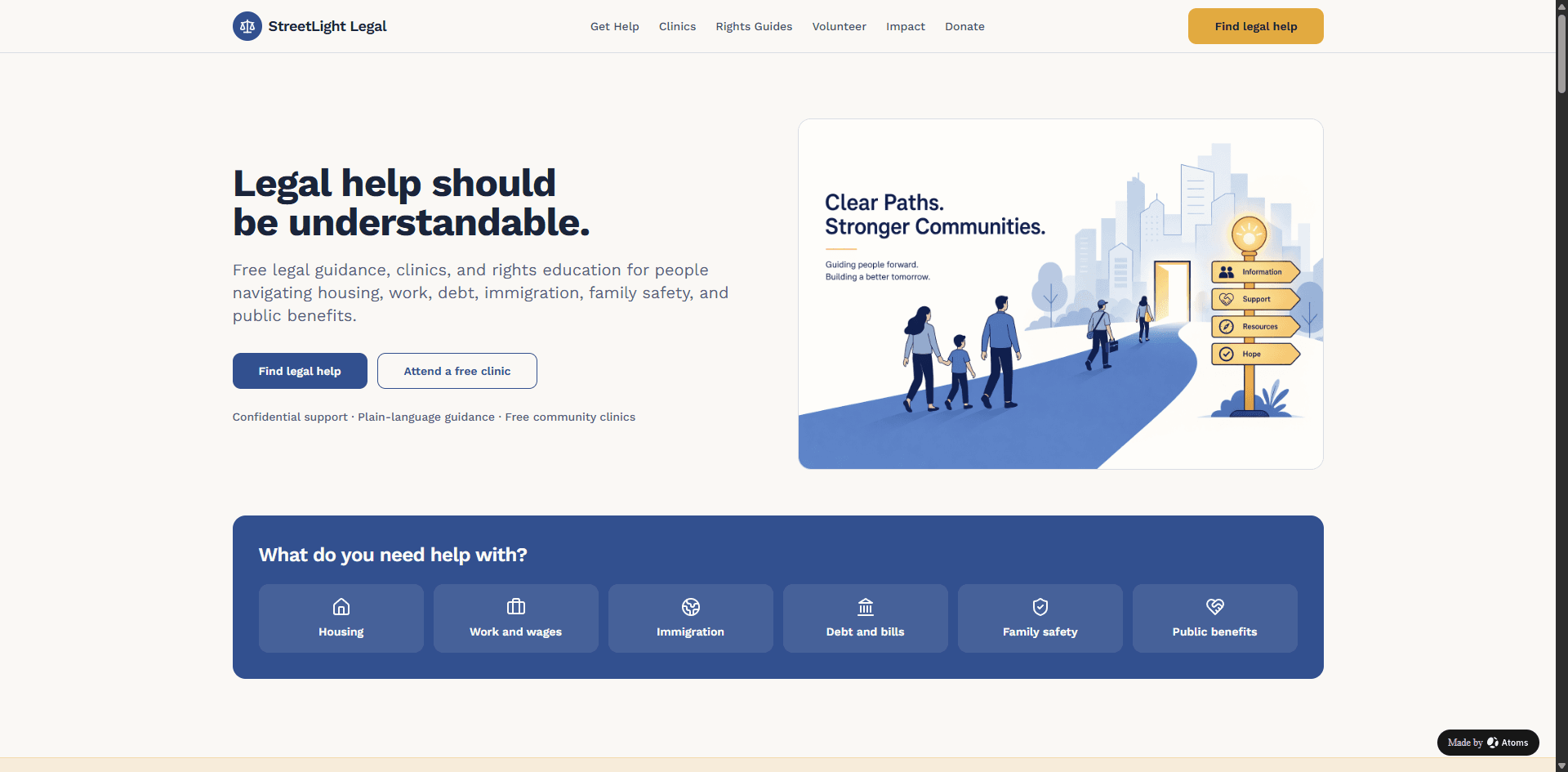
StreetLight Legal
Original prompt
StreetLight Legal: distinguish legal information from legal advice and explain service eligibility.
8. Review for trust, accessibility, and conversion
- Donation buttons reach the verified payment platform and use the correct organization identity.
- Impact numbers include a source and reporting period.
- Partner marks, testimonials, and beneficiary stories are authorized.
- Volunteer forms explain what happens after submission.
- Legal status, registration, privacy, and tax language are reviewed for the organization’s jurisdiction.
- Demo donation totals and invented program claims have been removed.
Also test the result on mobile where relevant, verify keyboard and link behavior, and review visible text for contrast, hierarchy, spelling, and scanning. Do not describe a visual mockup as a connected production workflow.
9. Publish, measure, and improve
After launch, measure behavior tied to the page's real job: qualified clicks, completion of the primary path, engaged reading or viewing, signup, first build, successful generation, and—where measurable—publication. Avoid judging the page only by raw visits.
For the first iteration, record:
- source and medium;
- first landing article or Use Case page;
- which example or CTA was selected;
- signup and first-build continuation;
- successful generation and publication;
- common exit points and failed actions.
Start with the verified example
- View Code for Tomorrow.
- Copy and customize its original prompt or the reusable prompt above.
- Build your own version with Atoms.
The best first version is not the one with the most content. It is the one that gives the intended audience accurate information and a clear next step.
