On this page
A spelling worksheet maker turns your own word list into practice you can print. Start with words your learner has been taught, choose an activity that matches the task, and check the student page against its answer key before handing it out. The workflow below gives you a small, reusable packet: supported practice, a short sentence activity, and a separate page for the words that need another attempt.
Want a maker that follows your own weekly routine? Build a spelling worksheet app in Atoms with editable word lists, missing-letter and sentence activities, separate student and answer-key views, and a review sheet for selected words. Atoms lets you describe a web app in natural language, preview it, and refine it with follow-up instructions. Use the complete build prompt below to turn this workflow into your own app.
Build a worksheet maker around your own words, activities, and print layout.
Step 1: Prepare a clean word list
Keep an approved master list outside the worksheet tool. Copy from the teacher's assignment or your lesson plan, then check spelling, duplicates, capitalization, and any regional spelling choices. When importing a photograph or scanned document, compare every extracted word with the original. A worksheet generated from a transcription error will repeat that error across its activities.
Here is an illustrative ten-word list built around sh. Use it to try the workflow, then replace it with your assigned words. It is a sample, rather than a grade placement recommendation:
Read each word with the learner and check its meaning before choosing a sentence exercise. If shed or cash is unfamiliar, explain it with an everyday example or choose a different taught word. A shared letter pattern alone does not establish that every word or sentence suits a particular child.
Give the list a clear label, such as “sh practice — List A.” Keep review words separate from new words so you can see which items you intended to revisit. Avoid putting children's full names or other personal information into a public worksheet list. An anonymous list is enough to test the layout.
Step 2: Choose an activity that reveals the skill
Decide what you want to observe before selecting a template. A learner who copies a visible word has completed a different task from one who writes it after hearing it. Keep that distinction in the instructions and in your interpretation of the finished sheet.
| What you want to observe | Worksheet format to choose | What to check afterward |
|---|---|---|
| Writing a word with a model available | Copying or trace-and-write | Letter formation, sequence, and usable writing space |
| Completing an incomplete spelling | Missing letters with a word bank | Whether the restored word matches the master list |
| Recalling a spelling without seeing it | Cover-and-write or a dictated list | The independent attempt, before correction |
| Using a word with the intended meaning | Short sentence completion | Meaning, grammar, and the accepted answer |
For the sample list, start with missing letters and a word bank. Follow it with a short sentence task. Use a separate recall sheet when you want an independent attempt. This is a suggested sequence for preparing materials; choose the amount of support with the teacher or learner.
A spelling word worksheet generator is useful when it accepts the exact assigned list. A picture-choice maker serves a different task: the learner identifies a word or correct spelling beside an image. Tools for Educators documents a picture-based maker with editable choices and a printable sheet. Check that its available pictures match your vocabulary before using it for an arbitrary weekly list.
Step 3: Enter the words and build a small packet
Common Core Sheets provides a free spelling worksheet maker with custom word entry, activity selection, and worksheet creation. Its page includes sentence and definition fields, word-bank controls, and an answer-key option. That makes it a practical starting point for the list-based workflow here.
Use the maker's three main sections:
- Input your words: enter the approved list. When using its paste-list controls, select the separator that matches your text and inspect the resulting fields.
- Select Activities: choose a small set, such as Filling in Letters and Spelling Test. For recall, turn off the test's word bank. Decide whether “Separate space for each letter” provides the support you want.
- Create: choose worksheets, set a recognizable title, include the answer key, and inspect the output before printing.
Interface labels and options can change. Use the live preview to confirm the current output rather than assuming that a selected option has produced the intended page. If you use generated sentences or definitions, edit them as part of the content review in the next step.
In our browser check, the ten-word sample produced four PDF pages: a missing-letter sheet and key, plus a test sheet and key. We inspected all four pages and checked the words against the list. The test retained separate letter slots, which reveal each word's length; keep that cue only when it fits your task.
For an alternative template workflow, Spelling Test Buddy's Worksheet Creator introduction describes entering a word list, choosing a template, and downloading the worksheet. It lists formats including cover-and-write and missing letters. Start with the format you need; keep account requirements and current download options in your selection checks.
The same checks apply when you find a free spelling worksheet generator elsewhere: verify custom-list input, a usable preview, enough writing space, and access to the output you intend to distribute. Check which export and saved-list features the free option includes before preparing a packet.
Step 4: Check the words, questions, and answer key
Review the student page and answer key together. Check every item against the master list, including questions that look obvious. An attractive layout can still contain a wrong word, a missing answer, or a sentence with several plausible responses.
For a missing-letter activity, keep the answer bank visible if that is the intended support. These original example items can be copied into a worksheet or document:
| Practice item | Answer to verify | Editing check |
|---|---|---|
s _ i p |
ship | Restoring h reproduces the assigned word |
f i _ h |
fish | Restoring s preserves the correct order |
s h _ l l |
shell | Restoring e gives the full five-letter word |
Write “Use the word bank to complete each word” above this activity. Without that constraint, a fragment may admit another valid word. Check the exact instructions alongside the answer instead of treating the printed key as automatically exhaustive.
For a short theme, use a setting familiar to the learner and keep the spelling task visible. Here is an original harbor example using three words from the list:
Word bank: ship, shell, fish. Use each word once.
A large _____ sails into the harbor.
Mia finds a _____ on the beach.
A _____ swims under the dock.
The intended answers are ship, shell, and fish, in that order. Review whether the learner understands harbor and dock; replace unfamiliar context words before printing. Adding a theme is an optional way to organize the page. Whether it helps this learner stay engaged is something to observe, rather than a promised learning improvement.
For any generated story, inspect spelling, word meaning, sentence grammar, and suitability for the learner. Check that the tool actually uses the assigned words and that the answer key follows your edited version. A child should not have to guess an author's unusual wording to complete a spelling task.
Step 5: Preview the page at its intended print size
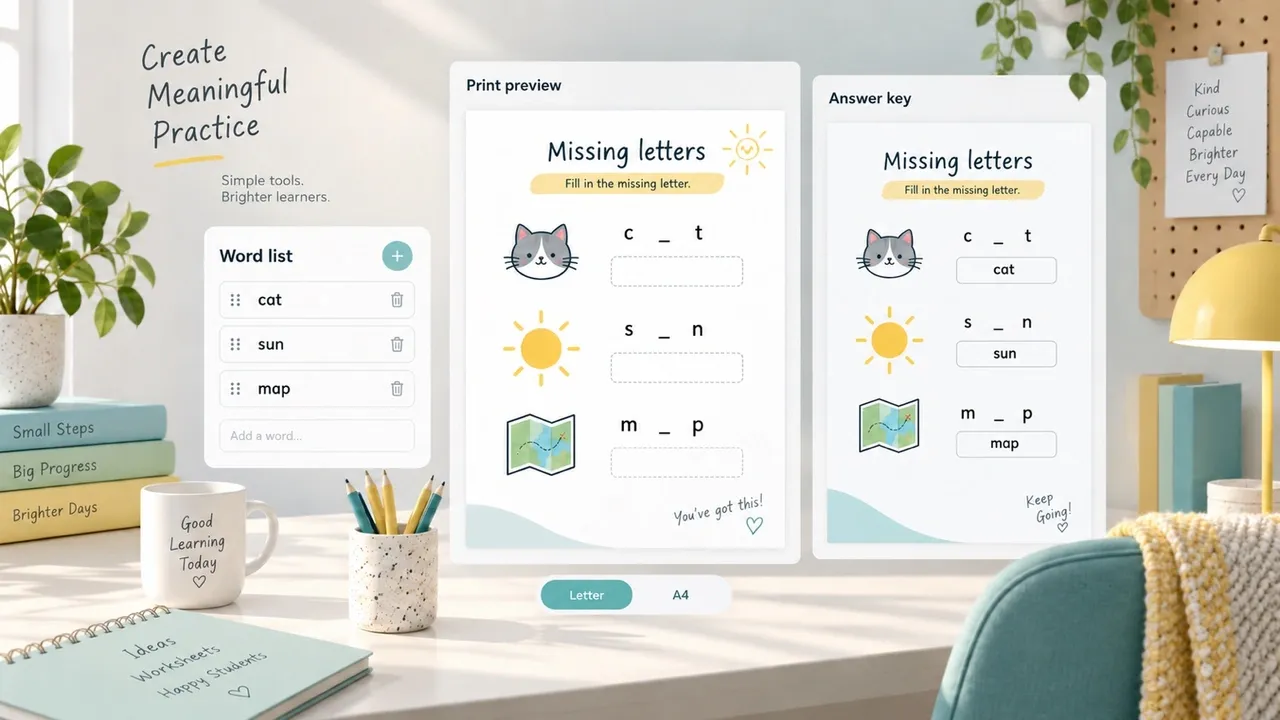
AI-generated editorial concept; not a screenshot of a deployed app.
Open print preview and select the paper your printer uses, such as US Letter or A4. Look at every page, including the answer key. Keep a question and its writing space together; move or shorten content if a page break separates them.
Check the longest word in the list against the available line. Also check whether a handwritten answer will fit below each sentence. If the worksheet looks crowded, reduce the number of items per page before shrinking everything to an uncomfortable size.
Print one copy or save a PDF for inspection before distributing a class set. Look for clipped borders, faint tracing text, missing images, and browser headers that obscure the activity. Try a black-and-white preview when color is used: the question must remain understandable without colored labels.
Keep the student pages and teacher key clearly identified. Use filenames such as sh-list-a-student and sh-list-a-key so the answer sheet does not become the handout by mistake. When sharing a link, open it in a signed-out browser to check what a parent can actually see.
Step 6: Make the next sheet from observed errors
Use an independent attempt to choose review words. Keep the original attempt visible and record the target word beside it. For example, an illustrative response of “shel” for shell tells you which spelling to revisit. Ask the learner to compare the two, identify the missing letter, and write the corrected word.
Create the next small sheet from those recorded words. Include space for the first attempt, the correction, and a later attempt with the model covered. If a word was copied correctly but missed during recall, preserve both observations; they describe different levels of support.
You can keep this record on paper. A digital tracker becomes useful when you regularly manage several lists or need to retrieve an individual's review set. Decide what you need to save before asking for accounts, dashboards, or class-wide records.
Build your spelling worksheet maker with Atoms
Build an app that follows the sequence you just used: paste an approved list, edit the practice items, check the student view and key, print, and select words for the next sheet. Atoms' AI App Builder supports creating web apps from natural-language instructions and previewing changes as you iterate. Give it the worksheet workflow as a concrete build brief.
- Describe the interface: ask for word entry, activity controls, and separate student and teacher-key previews so the same list drives both pages.
- Refine it in preview: check the sample words, edit a question, and ask Atoms to adjust crowded rows or print controls. Use the updated preview to check each change.
- Extend it when needed: Atoms also documents backend capabilities. Once the print workflow works, specify saved-list ownership and access if you need to retrieve lists across sessions. The first prompt keeps learner information out of the app.
Copy the full prompt below, then use Build my worksheet maker to enter Atoms and paste it into your build request:
Copy this prompt to build editable practice sheets and matching answer keys in Atoms.
Run the ten-word sample through the app's word entry, two activity types, student preview, teacher key, and Review tab. Change shell to a different approved word and check that both the item and key update. Reload the sample, select only shell and fish for a review sheet and confirm that the other eight words stay out. Inspect student and key printouts separately in Letter and A4 preview; the student version must hide answers, and each item must keep its writing space.
If a check fails, give Atoms the exact input, observed output, and requested change. For example: “In A4 print preview, the last sentence moves to the next page without its answer line. Keep each question and its writing space in one block.” Recheck that output after the change. The Atoms Discover gallery provides examples of user-created apps for interface ideas.
Add themes or saved records after the core workflow works. Keep teacher review of spelling, sentence meaning, and learner vocabulary in the process before any student sheet is distributed.
Conclusion
Create one small packet from an approved list, verify every answer, and inspect a full-size printout. Use the learner's independent attempts to select the next review words. Bring that routine to Atoms with the prompt above: build a reusable worksheet maker, test it with your own list, and refine the activity and print layout around your needs.
Turn your weekly word list into a reusable worksheet app with focused review sheets.
Frequently asked questions
01Q1: Can I make a worksheet from my own weekly spelling list?
Choose a maker with editable word input. Paste or enter the assigned list, then compare the imported fields and generated pages with the original. Picture-based tools may require matching images, so check their vocabulary before committing to that format.
02Q2: Can I save the worksheet as a PDF?
Check the tool's download options. If it uses a browser print view, look for Save as PDF or your system's PDF destination in the print dialog. Inspect the saved file itself for page breaks and clipped content before sharing it.
03Q3: Should every learner get the same worksheet?
Keep the assigned words and support appropriate to the lesson. You can vary the word bank, amount of writing space, or review subset while preserving a clear record of what each task asked the learner to do. Use the teacher's judgment to choose the level of support.
04Q4: How do I check AI-generated spelling sentences?
Read each sentence against the assigned word, its intended meaning, and the learner's vocabulary. Confirm that the instructions constrain the answer sufficiently, then check that the answer key matches the edited sentence. Revise any unclear item before printing.
