On this page
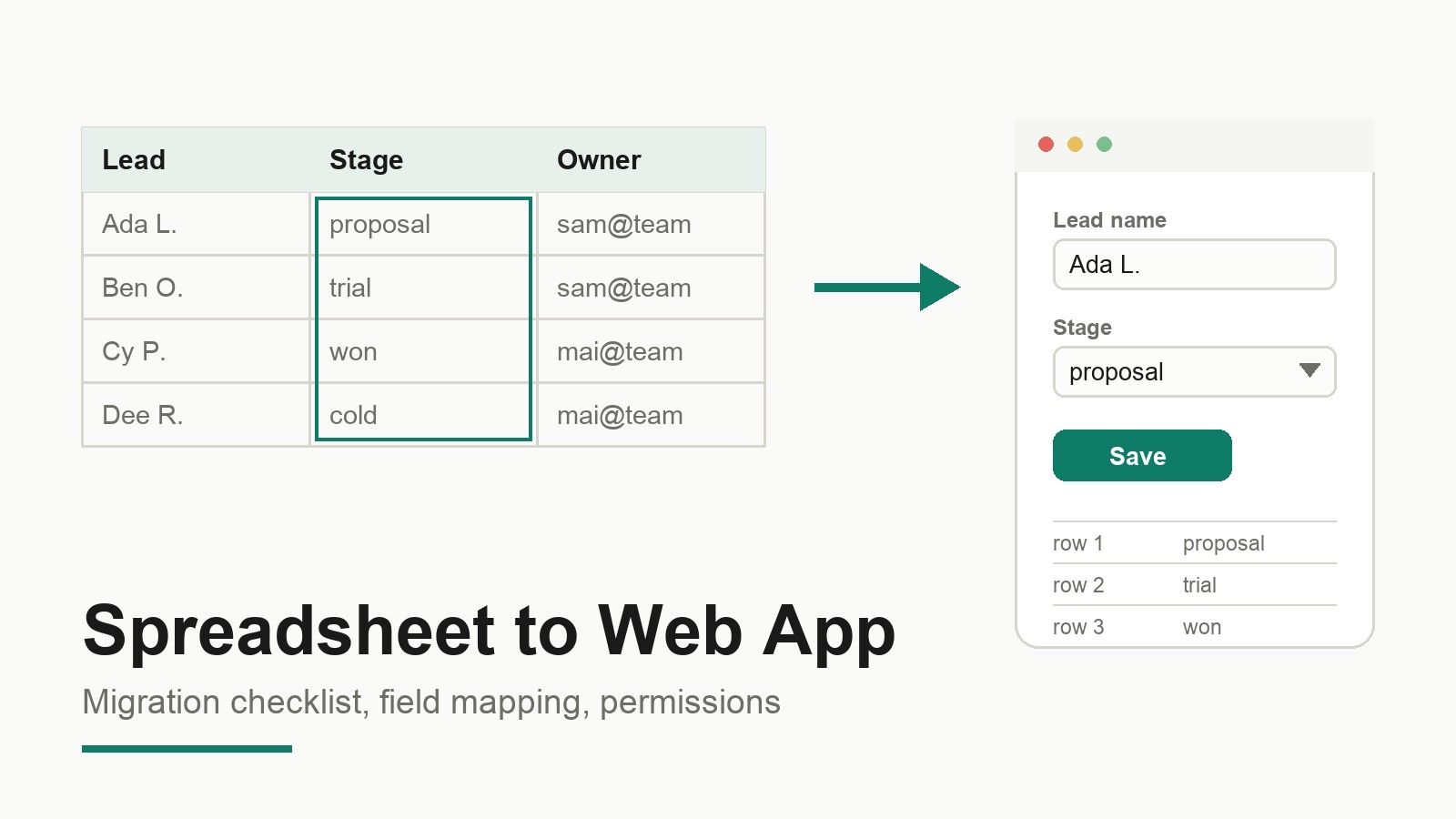
Your team already has the data. It sits in a Google Sheets or Excel tracker that everyone edits, argues about, and half-trusts. A spreadsheet to web app migration is mostly a data-modelling job, and the part people underestimate is not the import. It is deciding which columns become typed fields, which rules the grid was quietly enforcing, and who is allowed to change what.
The practical version of the "apps spreadsheet" question is rarely about which product to buy. It is about what changes when the grid stops being the interface. This guide is a spreadsheet migration checklist with the field mapping and sheet permissions work attached to it, in the order that avoids rework.
Step 1: Decide what the sheet is really doing
A tracking sheet usually holds three jobs at once: it stores rows, it acts as the interface, and it enforces a permission model. Migrating makes sense when at least two of those have outgrown the grid. Storage outgrows it when rows carry relationships you keep re-typing. Interface outgrows it when people need a form that only shows the fields they own. Permission outgrows it when you need one group to submit and another to approve.
The permission side is where sheets are weakest and apps are strongest, so compare them precisely. A Drive file permission is a combination of a type (user, group, domain, or anyone) and a role from owner, organizer, fileOrganizer, writer, commenter, reader. You can create one with a request to the Drive permissions endpoint, passing the role, the type, and an email address or domain. Those permissions propagate down a folder tree, a child item can grant a more permissive role than its parent, and moving an item re-evaluates it against the new parent. My Drive files need an owner or writer to share, and an owner is required when the writersCanShare setting is off.
That model is excellent for documents and poor for application data. You cannot express "sales may edit the status column but not the price column" with a single file role. In an application, the equivalent question is answered by three separate layers, and step 6 covers them.
Step 2: Inventory the sheet before you move anything
Two failures cause most of the pain in these projects: importing into a table whose structure does not match the data, and discovering afterwards that the sheet was enforcing rules nobody wrote down.
Walk the sheet and record:
- every column, including the ones that look like decoration;
- the real data type behind each column, not the display format;
- which columns are required in practice, and which are only usually filled;
- the column that identifies a row (your candidate primary key);
- any dropdown, checkbox, or conditional formatting rule;
- formulas, especially ones that compute values other people copy;
- who edits which columns, and who only reads;
- how many rows you actually need, including archived ones.
That last one matters because imports have a ceiling. The built-in database in Atoms accepts a CSV file no larger than 10 MB, and the file's columns must match the destination table's schema. Splitting a giant tracker into current and archived tables is usually a better answer than fighting the limit.
Step 3: Map columns to fields
This is the step that decides how much validation you get for free later. One column becomes one field with a name, a data type, a default, a required flag, and a uniqueness rule. In the Atoms database view you can inspect a table's structure and see each field's name, data type, key status, requirements, constraints, and default value, and you can change the name, type, default, required status, or uniqueness of an eligible field. The database guide documents those controls, and it is worth reading before you finalise the mapping table.
A mapping table keeps the decisions visible:
| Sheet column | Destination field | Type | Rule to enforce | Who may change it |
|---|---|---|---|---|
| Lead name | lead_name | text, required, unique | no duplicates on import | sales |
| Stage | stage | enum | value must exist in the stage list | sales |
| Owner | owner_email | text | must match a member address | manager |
| Expected value | expected_value | number | zero or positive, no currency symbol | manager |
| First contact | first_contact | date | real date value, not text | system |
| Notes | notes | long text | optional | sales |
Three details in that table deserve attention before you touch data.
Numbers and dates are the classic casualties. When a value is written to a sheet through the API, the input option decides how it is interpreted: the RAW option inserts the input as a string, so a formula written as text stays text, while USER_ENTERED parses the input the way the sheet UI would, turning a date-like string into a date and an equals sign into a formula. When you read values back, the default render option returns formatted values and dates as serial numbers unless you ask for something else. If your tracker has ever produced a column of text that looks like dates, plan to normalise it during mapping rather than after import.
Uniqueness needs a real key. Imported rows are inserted as new records, and editing or deleting a row requires primary-key information in the database view. Pick the key before the first import, not after you find duplicates.
Required is not the same as "usually filled". Every blank cell in a required field becomes a decision you make once, at mapping time, instead of during the first week of production use.
Step 4: Move the rows with a rehearsal
Export the sheet to CSV, then rehearse the import on a development database before the production one. Atoms separates development and production environments, and its guidance is explicit that you should not rebuild or overwrite the production database on your own when something looks missing.
Before the real import, confirm four things: the file is within the size limit, the columns match the destination table, the table is writable rather than read-only, and there are no unsaved row edits pending in the table view. Read-only tables cannot receive an import at all, and pending edits can block the action.
Then import once, and treat it as one-way. Imported rows are added immediately and cannot be automatically undone, which is why the documentation suggests exporting the existing data first. A rehearsal copy is your undo.
Step 5: Rebuild the rules the grid was enforcing
Spreadsheet validation does not travel with a CSV. A file contains values, and the import checks only that the columns line up with the schema. Everything else needs to be re-declared in the new system, and the database schema is where the durable half of it belongs: types, defaults, required flags, uniqueness.
The remaining half belongs in the form. The sheet's dropdown becomes a select with the same allowed values. The "date must be in the future" rule becomes a form check that can explain itself. The column that managers edit becomes read-only for submitters. This is the part users notice, because a form that refuses bad input with a sentence is a better experience than a cell that quietly accepts a phone number where a date should be.
Decide deliberately what you are not rebuilding. Some rules existed only because a sheet has no other way to express intent. Copy the ones that protect data, drop the ones that merely warned a human.
Step 6: Split the audience before you share
In an application, access depends on the account someone signs in with, the workspace that holds the project, and their role in that workspace. A shared project link or a published app URL is a different kind of access from workspace membership, and copying a link does not add anyone to the workspace or give them an owner or editor role. Critically, someone who signs in to your published app does not become a workspace member. The access and permissions guide is the reference for checking a role when someone says they cannot open a project.
That single fact simplifies the permission design into three audiences:
| Audience | What they need | How to give it |
|---|---|---|
| Builders | edit the app, the schema, and the data | workspace membership with an editing role |
| App users | submit a form, read their own or public rows | the published app URL and the app's own access settings |
| External collaborators | the source sheet, not the app | the sheet's existing Drive permission |
Most permission arguments in sheet-based workflows come from collapsing those three into one sharing list. Keep them separate and the migration stops feeling risky.
Also decide early who can connect integrations. Connecting or disconnecting an integration may require workspace owner or authorised admin access, and disconnecting a connector stops future use without reversing changes it already made.
Step 7: Keep the sheet in the loop only where it earns its place
Sometimes the honest answer is that part of the process should stay in the grid, at least for now, whether the starting point is the Google Sheets app your team opens every morning or a workbook stored in OneDrive or a SharePoint site. An Excel to web app move that keeps a live spreadsheet on one side is a different architecture from a one-time import, so if the grid stays, be precise about what it costs.
Reading and writing sheet values programmatically is well documented. Single ranges are read and written with the values get and update methods, several ranges at once with the batch methods, and new rows can be appended after a table of data. Reads need the spreadsheet identifier and an A1-notation range, and a bare range such as A1:B2 applies to the first sheet in the file unless you name the sheet. On the Excel side, the equivalent path runs through Microsoft Graph: a workbook stored in OneDrive for Business, a SharePoint site, or a group drive is reachable by item id or path, and worksheets, ranges, tables, and charts can be read or modified. Graph sessions decide whether changes persist, and access needs the Files.Read scope for reading and Files.ReadWrite for writing. Both APIs are also narrower than a spreadsheet UI: the Excel API supports only the Office Open XML workbook format, so older .xls files are out of scope until they are converted.
What that architecture buys you is a second interface to the same cells. What it costs is a second place where validation, permissions, and failure modes live, because a write from an application still lands in a grid that other people edit by hand.
What is not supported today
Read this part out loud before you promise anything to your team.
There is no documented, one-click live connector that turns a Google Sheet or an Excel workbook into the data source of an Atoms project. The help centre's coverage check is unambiguous on this point: across 1,192 help URLs, nothing matches sheet, spreadsheet, Excel, form, or validation. What is documented is the pair of paths that actually work: import CSV data into the built-in database, or connect Supabase when the app should own its database, authentication, file storage, or backend functions.
Connector availability changes over time and can vary by account and release, so the reliable check is the connector catalogue inside the product. The documentation's own instruction is the right rule to adopt: if the capability or action you need is not shown for a connector, do not assume it is supported.
Two more limits belong in the plan. Imports cannot be automatically rolled back, so a rehearsal is mandatory rather than tidy. And there are no per-cell permissions inside a table; field-level control is a form and application concern, not a database one.
Build a web app from your spreadsheet with Atoms
Give Atoms one sample CSV, a column-to-field map, the primary key and the actions each role can take. Ask for a persistent app with forms and permission rules, then compare the imported records with the source. A polished table is only the first step: a saved change must survive reload and an unauthorized write must be refused by the server.
The following examples start from separate, eight-row synthetic CSV files. Their brands and records are fictional. They demonstrate one-time migration workflows; they do not imply a live Google Sheets or Excel connection.
Inventory tracker: Field Supply Stockroom
Turn material rows into a searchable stockroom with low-stock flags and a validated stock-editing form. Coordinators change quantities; specifiers have a read-only view.
| Inventory column | App field and rule |
|---|---|
material_id |
Unique stable record ID |
quantity and reorder_level |
Non-negative whole numbers; flag stock below the reorder level |
unit_cost |
Non-negative decimal amount |
family |
Filterable material category |
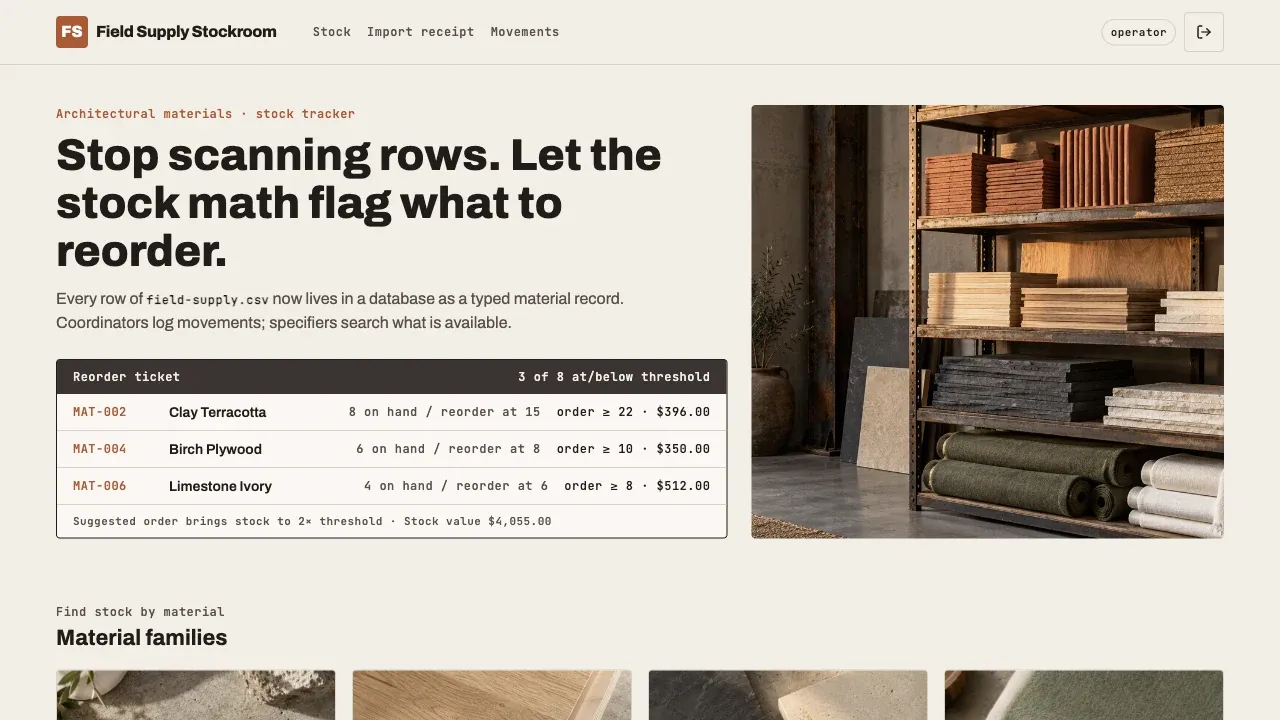
Try the live Field Supply Stockroom demo · Open this example in Atoms
Try this journey: compare the import receipt and eight record IDs with the source CSV, change one quantity, then reload. Sign in as the viewer and confirm a write is denied. Reloading must not import the eight rows again.
Work-order tracker: Crew Board Dispatch
Turn a maintenance tracker into a dispatch queue. A coordinator assigns work and sets priority; a technician updates the status of assigned jobs.
| Dispatch column | App field and rule |
|---|---|
work_order_id |
Unique stable work-order ID |
priority and status |
Controlled choices used by filters and forms |
assigned_to |
Technician assignment; blank means unassigned |
due_date |
Date, independent of display formatting |
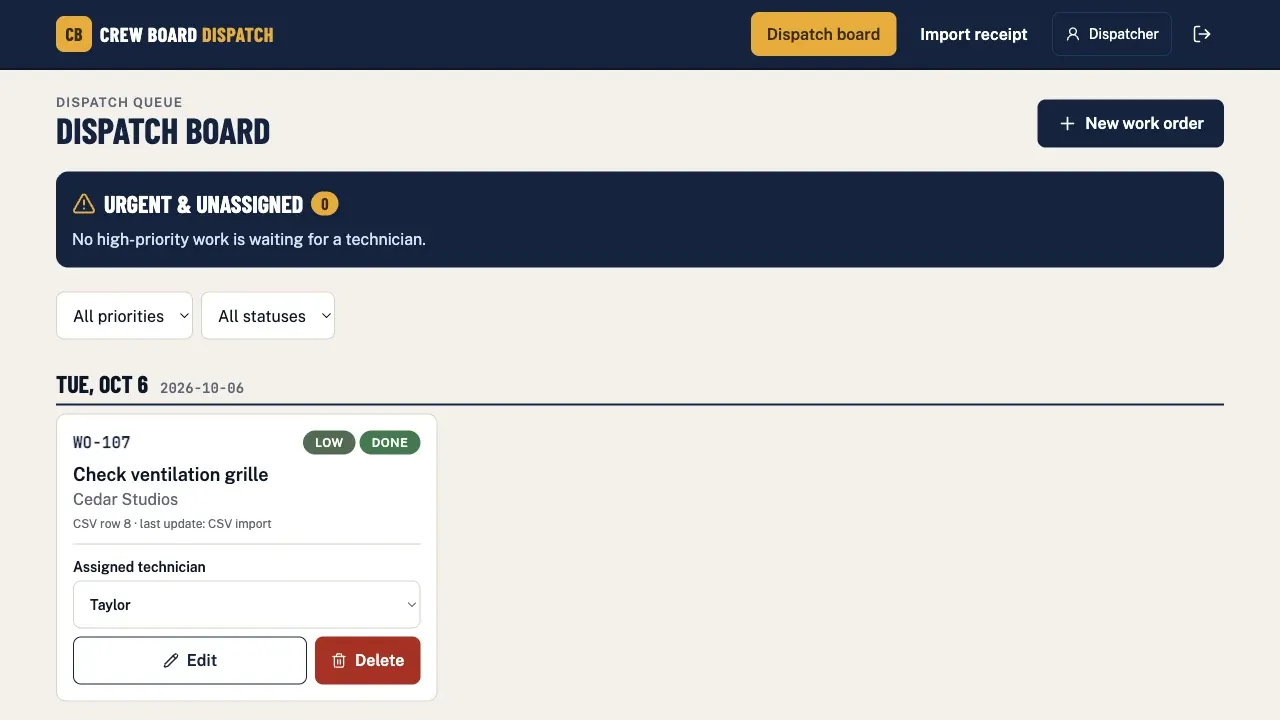
Try the live Crew Board Dispatch demo · Open this example in Atoms
Try this journey: filter urgent unassigned work, assign a job and save a technician's update. Check the change after reload and verify that the technician cannot update a job assigned to someone else.
Applicant tracker: Fellowship Review Desk
Turn applicant rows into a review workflow with assigned reviewers, score validation and a coordinator shortlist. Keep record IDs stable so a score change updates the intended application.
| Application column | App field and rule |
|---|---|
applicant_id |
Unique stable application ID |
requested_funding |
Non-negative amount |
reviewer |
Assigned reviewer identity |
score |
Optional until reviewed; whole number from 0 to 100 |
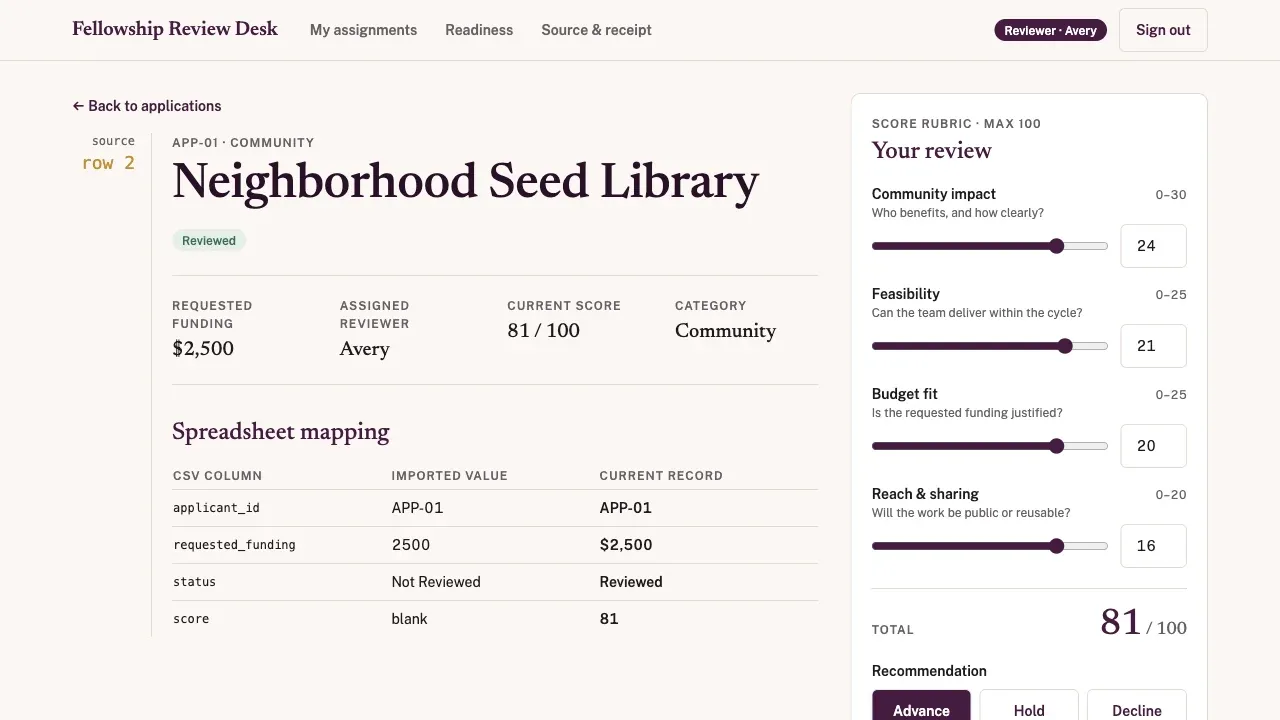
Try the live Fellowship Review Desk demo · Open this example in Atoms
Try this journey: open an assigned application, reject an out-of-range score, then save a valid score and reload. The coordinator must see the updated record; a different reviewer must not gain access through a direct link.
Copy this spreadsheet migration brief
Attach a small synthetic CSV before moving live records. Replace the bracketed fields with your own map and permissions.
Build an app from your spreadsheet with Atoms: open the builder section, attach a sample and paste your adapted brief. If external clients will use the app, add the client portal ownership and two-account checklist before sharing it.
Conclusion
The migration succeeds or fails at the mapping table, not at the import button. Write down every column and the rule it must satisfy, choose the primary key, rehearse the CSV import on a development database, then separate builders, app users, and external collaborators before you send a single link. If you want to start from a working base instead of a blank page, describe your tracker to Atoms through the app builder use case and let it build the first version, then bring your rows across through the database import.
Frequently asked questions
01Q1: Can Atoms read my Google Sheet directly?
There is no documented live connector for that today, and the connector catalogue inside the product is the authoritative list because availability varies by account and release. The supported route is to export your sheet to CSV and import it into the built-in database, or to connect Supabase when the application should own its database. If a connector you need is not shown, do not assume it is supported.
02Q2: What happens to my dropdowns and formulas?
Dropdown rules and conditional formatting do not travel with a CSV. Rebuild the ones that protect data as database constraints (types, required, unique) and form checks, and decide explicitly which ones you are dropping. Formulas need individual decisions too, because a computed column either becomes application logic or stays a manual field.
03Q3: Is there a size limit for the import?
Yes. A CSV import must be no larger than 10 MB, its columns must match the destination table's schema, and the destination table must be writable. Imported rows are added immediately and cannot be automatically undone, so export your existing data first and rehearse on a development environment.
04Q4: Who counts as a user of the app?
Anyone who opens your published app URL and signs in to the app. They do not become workspace members, and they do not gain an owner or editor role in the workspace. Workspace membership is for the people who build and maintain the project; the app's own access settings govern what its users can see and do.
05Q5: How do I keep the sheet and the app in sync afterwards?
Either move the workflow fully into the app, or accept a second interface and pay for it deliberately. Reading and appending sheet values through an API is documented, but every write still lands in a grid other people can edit by hand, and each side keeps its own validation and permissions. Most teams get more value from a one-time import plus a clear rule that the app is now the record of truth.
06Q6: Which column should become the primary key?
Pick the column that will still identify the row after three months of real use: an email, an order reference, or a generated identifier you add during mapping. Editing and deleting records require primary-key information, and duplicate rows imported without a key are far harder to untangle than a slightly longer mapping exercise.
