On this page
Map every source field and consent state before moving website leads into a new CRM. Keep the existing WordPress form running while you export a sample, normalize it, dry-run the mapping, and reconcile record counts and exceptions. Then migrate in controlled batches, preserve each contact’s opt-in status and source evidence, and switch the live form only after the destination records and duplicate rules are understood.
A recent project post asks for help connecting WordPress, Make.com, and Brevo, removing a Mailchimp integration, migrating contacts and related assets, setting up capture forms, and preventing duplicate contacts. The original post describes that project scope. An Atoms-built admin receiver can help stage imports and inspect receipts, while WordPress and the provider remain separate systems whose real API permissions and writes must be configured and verified.
Download the sample CSV · Download the migration field map · Download the form field specification
Inventory fields and consent before export
Make a mapping sheet with one row per source field. Include the source system and field name, destination attribute, data type, transformation, consent meaning, required/optional status, and an exception action. Map identity separately from marketing permission: email and phone identify a contact; they do not prove that the person agreed to receive a particular kind of message.
The accompanying sample.csv contains synthetic records. The file is sample contact data; the separate field map below defines the transformation. It includes source_contact_id, email, phone, first and last name, source list, subscription state, consent timestamp, consent wording/version, collection URL, and destination list. Keep the original consent value and evidence alongside the normalized value. For example, map subscribed to email_marketing_status=opted_in only when the source record contains affirmative consent for that use and the applicable policy permits the transfer. Map missing, unknown, or ambiguous values to review_required or not_subscribed; do not turn a blank checkbox into consent.
| Source field | Destination field | Transformation and exception rule |
|---|---|---|
source_contact_id |
App source key / Brevo ext_id |
Preserve the ID with a source-system prefix; stop conflicting identities. |
email |
Brevo email |
Validate and normalize a matching key while retaining the original. |
phone |
Existing Brevo SMS attribute |
Convert only verified numbers to the documented country-code format; review malformed numbers. |
first_name, last_name |
Account-defined attributes | Confirm the attributes and types exist before writing. |
subscription_status |
App consent state / Brevo emailBlacklisted |
Preserve opt-out or suppression; unknown consent stays blocked for marketing pending review. |
| Consent timestamp, wording and URL | Restricted consent evidence | Preserve all source values even when the destination lacks an equivalent attribute. |
Before exporting, record source totals by list and state, the export time, and the fields included. Decide how to handle unsubscribed, bounced, suppressed, duplicated, malformed, and blank-address records. Keep a restricted exception file for records that need human review rather than silently dropping or promoting them. Do not copy campaign assets or historical engagement unless the migration scope and provider import path explicitly include them.
Dry-run and reconcile the destination
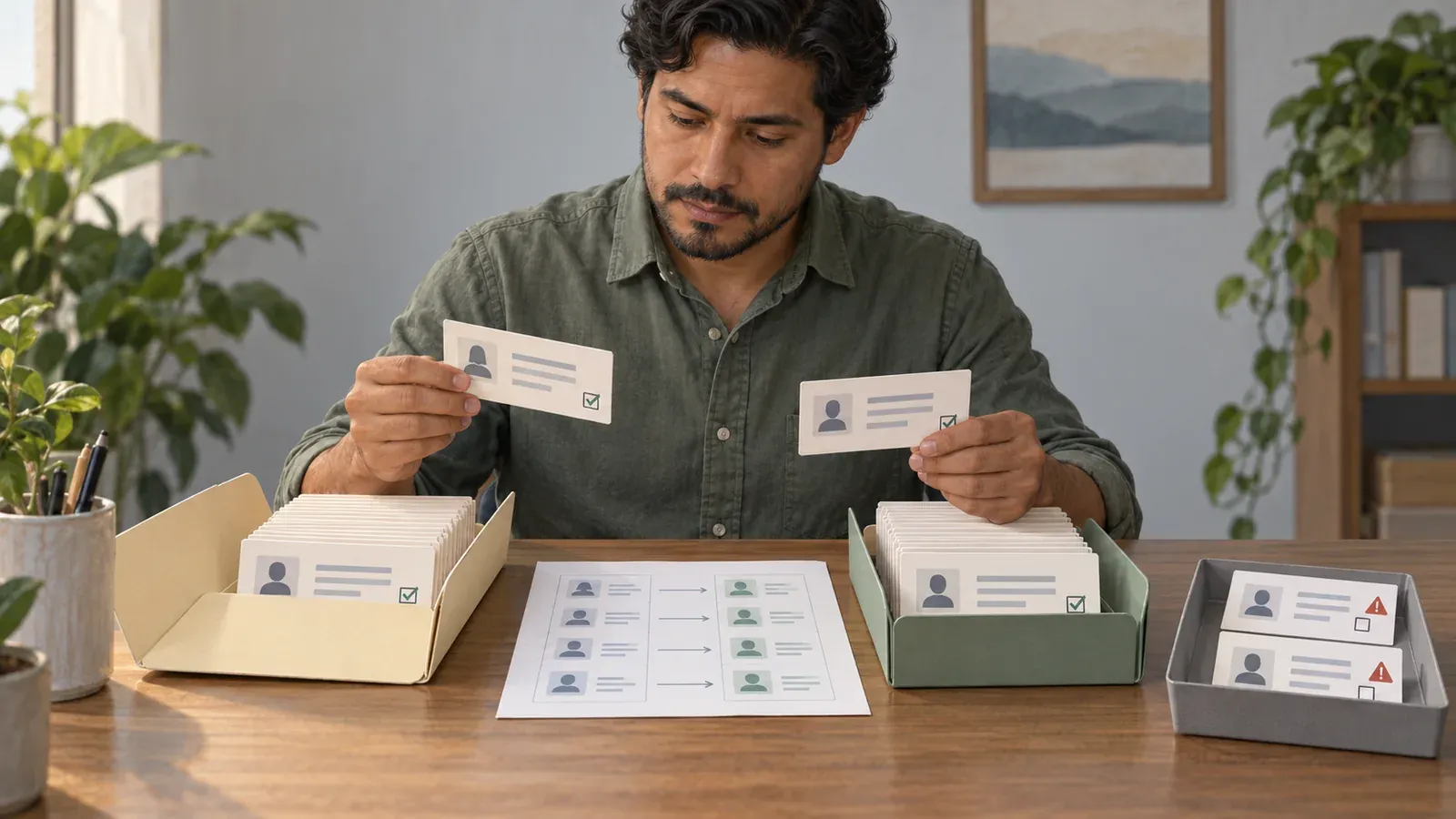
AI-generated editorial concept; not a screenshot of a deployed app.
Build an import job in your admin tool with forms, leads, consents, provider_ids, migration_batches, field_mappings, and migration_receipts. A receipt should store the source record ID, migration batch ID, payload hash, attempted time, provider result, destination contact ID when returned, and a sanitized error category. Put the API key in a server-side secret store; never include it in browser code, prompts, CSV files, or logs.
First load a small synthetic or approved sample into a staging target. Normalize email for matching without changing the original value, validate required fields, check that destination attributes exist, and compare the mapped consent state with the source evidence. Brevo’s create-contact API accepts email, phone in an SMS attribute, or an external ID, and contact attributes must exist in the Brevo account. It lists updateEnabled as optional and forceMerge as false by default; when forced, contacts sharing an identifier can be merged and one record deleted. Brevo’s create-contact reference For a migration, explicitly keep forceMerge=false and updateEnabled=false until an existing-record update is separately reviewed. Preserve unsubscribed contacts with the provider’s email-blocklist state (emailBlacklisted) and retained source evidence; list membership alone is not subscription permission. On an identifier conflict, stop that row for reconciliation instead of letting a merge choose which record survives.
A dry-run should write a report without calling the provider: rows ready, rows skipped by an explicit rule, conflicts, invalid values, missing attributes, and consent exceptions. Review the report and a sample of transformed rows with the data owner. Then import a small batch, read destination records back, and reconcile source IDs, provider IDs, list membership, consent state, and field values. A request timeout is an unknown provider outcome: look up the destination record and inspect the receipt before retrying.
Prevent duplicate submissions and keep rollback possible
Give each source row a stable migration key, such as source_system + source_contact_id, and enforce uniqueness on that key in the job database. Save the key and an attempt receipt before sending a create request. If the provider returns an ID, save it against the same source key. If the call times out, query by the known identifier or inspect provider history before another create call. Your job-level key prevents your own batch from submitting the same source row twice; it does not make an external API call idempotent unless the API documents that behavior.
For live website submissions, use the same intake table and deduplication policy but preserve the WordPress form as the source until the cutover is approved. Authenticate the server-to-server form handoff using a verified signature or secret and validate the form ID and payload on the receiver. During the overlap, tag each incoming record with its source and submission ID. Reconcile counts and recent submissions from both paths, then stop the old automation only after the new path has received and read back representative records. Connector actions and permissions depend on the account and release, so inspect Atoms’ current connector catalog before planning a direct external write. Atoms integrations
Write a rollback plan before cutover: pause the new intake worker, restore the prior WordPress form action or Make scenario, keep the import receipts and destination IDs, and identify whether any consent or contact updates must be reversed by an authorized operator. Do not bulk-delete or overwrite destination contacts as a rollback shortcut; preserve the audit trail and resolve changed records individually. Keep the new application as a staging/admin companion if replacing WordPress is outside the project scope.
Verify the migration in layers
Use the accompanying sample and form-template.json to define checks. Before a real import, verify that a second admin account without permission cannot view private contact data or migration receipts. After a sample write, refresh the admin view and read the matching row back from the selected backend. Atoms Cloud and Supabase are alternative backend choices for a single Atoms project; connecting either does not create the import workflow automatically. Atoms’ Supabase guide
For each test batch, reconcile: source rows selected, rows accepted, rows intentionally skipped, conflicts, provider-created or updated IDs, consent states, list assignments, and unresolved errors. Submit the same synthetic web form twice and confirm your own duplicate policy catches it while preserving the original submission receipt. Check a previously unsubscribed contact and confirm the import does not opt it in. Read records back from Brevo and inspect the live WordPress form path separately; a database row alone does not show that the public form routes correctly.
Build prompt
Use this prompt for an Atoms admin receiver. Select one backend, and keep provider writes disabled until the field map and dry-run report are reviewed.
Copy the build brief and use it to create your version in Atoms.
For the private admin interface, see how to build a client portal.
