On this page
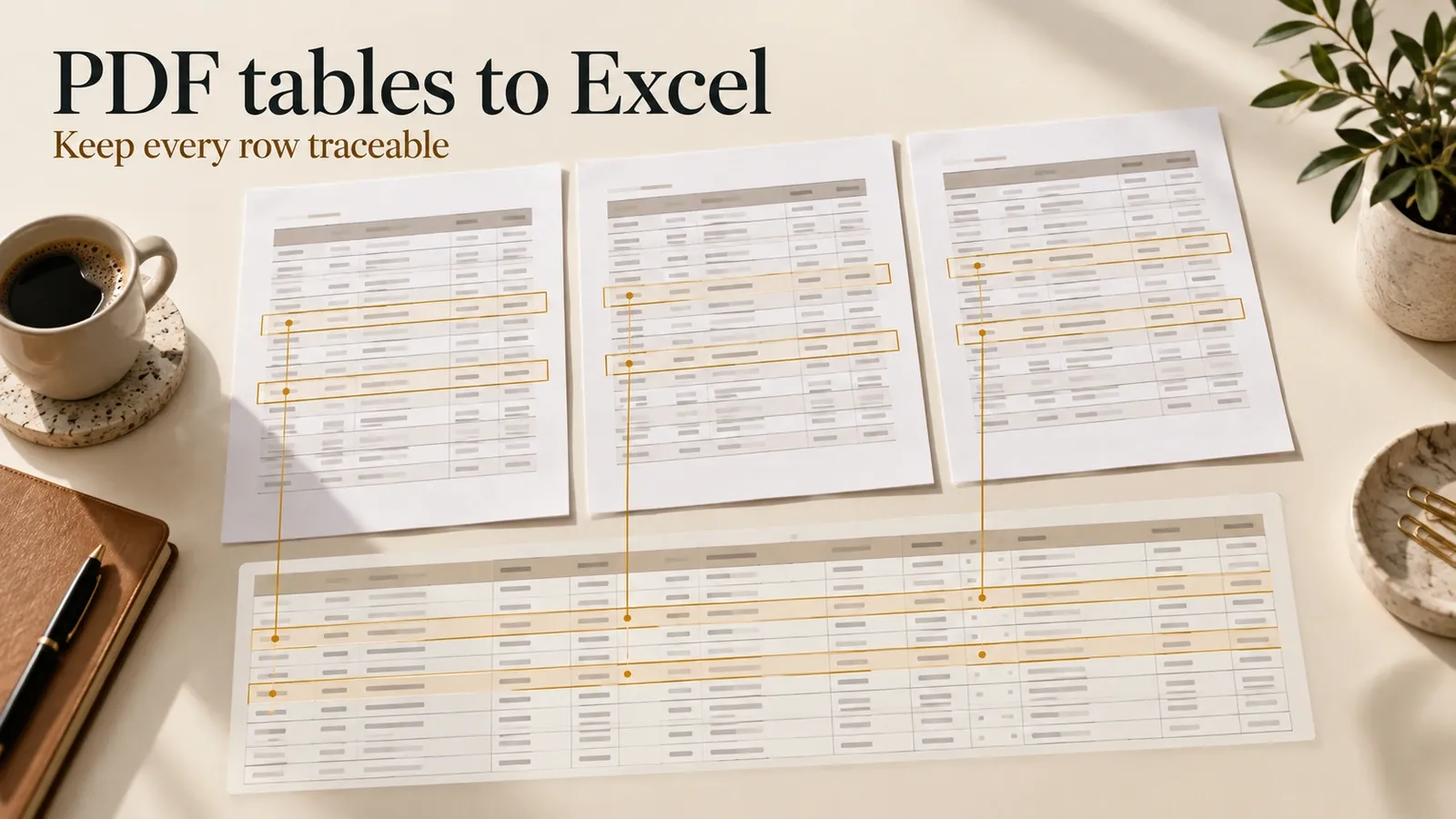
To extract tables from scanned PDF to Excel, or combine PDF tables across pages, first determine whether the PDF contains usable text or page images, then preserve the table's structure and source references as you combine pages. A scanned PDF needs recognition before its values can be reviewed as data. A table spanning pages needs matching columns, controlled header removal and a check for missing or repeated rows. The finished output should be a table you can trace back to the document.
This guide covers both decisions in one workflow. The extraction steps below follow current official documentation; the worked example verifies downstream normalization using synthetic table rows. It does not report an OCR accuracy test or a completed extraction from a real PDF.
Identify the input before choosing the extraction route
Open the document and inspect a representative page. Try selecting a value from the table and copying it into a plain text editor. A scan may contain only images; a scan that already has an OCR layer may allow text selection. Usable text alone does not establish that the column structure will be recognized correctly, so inspect the imported table as well.
Keep a backup of the original document. Record its filename, page count, table sections and relevant language. For mixed documents, note which pages contain text and which contain scans. Do not assume every page needs the same processing route.
Define the target table before extracting. For a fictional item schedule, the target columns might be item, quantity and amount, with source_page and source_row for traceability. For invoices, add document and invoice identifiers; for technical measurements, retain the unit and measurement context. A number separated from its unit can be a technically valid cell with the wrong meaning.
If a document is confidential, use a processing route approved for it. Read the tool's current data-handling conditions before sending the file to a cloud service. A local filename in an upload dialog does not establish that all processing stays on your computer.
Recognize scanned tables and review the output
Adobe's OCR documentation describes creating a searchable text layer from a scanned PDF. In Acrobat, open Scan & OCR, choose recognition in the current file, set the page range and language, then run Recognize Text. Inspect the recognized text before using it downstream; text recognition and table reconstruction are separate checks.
For a small table image, Excel's Data from Picture documentation offers an image-based route. Crop to the table, use the available From Picture option, review the recognized values and correct them before inserting the data. Check the official platform and character-set requirements for your installation. This route accepts a table image; it does not automatically establish a complete multipage PDF import.
When reviewing recognition, compare identifiers, decimal points, minus signs and column assignments with the source. An item code with a leading zero should remain text. A blank value should not become zero unless the document and your policy make that meaning explicit. A confidence flag is a useful review cue, but the final approval belongs to the actual value and its source context.
If a cell is unreadable, leave it unresolved and retain its page reference. Guessing a value can make the spreadsheet look complete while removing the very information the reviewer needs to find the problem. Request a clearer source or record a correction only when you can identify its basis.
Inspect PDF tables in Power Query
Microsoft's PDF connector documentation describes selecting a PDF source, inspecting the available objects in Navigator and choosing Transform Data for further preparation. Select the objects that correspond to the intended table and compare their column structure with the source pages before loading the final result.
The Pdf.Tables function supports a MultiPageTables option for combining similar tables on consecutive pages. That behavior can help with one table continued across pages, but it does not remove the need to verify whether those pages actually belong together. Different table sections can share a visual style while containing different measures or units.
If automatic combination loses structure, inspect a small page range and normalize the fragments separately. You can disable automatic multipage combination while investigating a problematic document. Record which ranges were processed so that a missing final page does not quietly disappear from the output.
An illustrative query is:
Replace the sample path and page range with the actual document. This is a documented query pattern, not a query executed in this tutorial. Inspect the returned table objects before selecting a Data column or promoting headers; object names and detected columns depend on the PDF.
Normalize page fragments before appending them
Use one target schema for every fragment. Map each page's item code, quantity and amount into that schema, retain the page reference and mark rows requiring review. A repeated header belongs in the extraction audit, rather than the final data table.
Power Query appends tables by column names, rather than their physical positions. If one input lacks a column, the combined result can contain nulls for that field. Microsoft's append documentation explains this behavior. Standardize names deliberately and check unexpected nulls after appending.
Do not remove every repeated item code as a duplicate. A schedule can legitimately contain several entries for the same item; an invoice can contain repeated products with different quantities. Identify duplicate extraction by source document, page and row reference before considering a business-level deduplication rule.
A continuation line needs a different decision. If a description wraps onto the next row, determine whether it belongs to the previous record or represents a new record. Preserve the raw fragment while applying the rule. Filling values downward without examining the record boundary can attach one item's amount to another description.
Verify a synthetic multipage normalization example
Imagine a fictional PDF with item rows on pages one and two and a printed subtotal on page three. Page two repeats the column header. The approved normalized output is:
The rule retains the two item records, excludes the repeated header and excludes the printed subtotal from the detail rows. The expected detail total is 61.00. Including a subtotal of 61.00 as another detail record would incorrectly double that total.
Check the amount calculation locally:
These checks were executed on the synthetic normalized rows. They verify the arithmetic and identifier preservation at that stage. They do not prove that OCR found the same values in a scan, that all PDF pages were extracted or that a spreadsheet application's import preserved the fields.
For a real document, compare the accepted output with page-level counts and the printed totals when those totals have the same scope. A matching grand total alone is insufficient: missing and duplicated rows can cancel each other. Check source coverage, record identifiers and the values that affect the next business action.
Load the approved table into Excel and keep exceptions visible
Import the approved CSV using Excel's text/CSV import controls and set identifier columns to text. Check the decimal and date interpretation for your locale. If you save an XLSX workbook, include separate sheets for approved data, exceptions and processing notes, rather than mixing unresolved values into the final table.
Keep the original source references in the approved data. A reviewer should be able to locate a disputed row without reconstructing the extraction. In the exception sheet, record the source page, raw value, problem, proposed correction and approval status. Recheck the final row count and totals after saving and reopening the workbook.
Define what makes the export ready. For this workflow, every intended page has been covered, the schema is consistent, headers and subtotals are handled explicitly, unresolved cells are visible and approved rows reconcile under the chosen rules. A file with an .xlsx extension does not establish any of those conditions by itself.
Build a repeated review workflow with Atoms
Keep the extraction tool that handles your documents. If a team repeatedly reviews those outputs, use the AI App Builder to create the surrounding workflow: upload approved extracted tables, inspect source references, route uncertain values and export accepted rows. Specify the schema and the fixture's expected results before generating screens.
The completion event is a reviewed, traceable table reaching the downstream user. Verify corrections, persistence, export contents and permissions in the actual application. Do not infer a native OCR engine from a file-upload interface. For transaction-specific bank statements, the bank statement to Excel guide covers balance reconciliation and transaction review as a separate task.
Conclusion
Separate recognition, table reconstruction, page combination and export verification. Preserve source references through every step. For repeated work, ask Atoms to build a review workspace around your extracted tables, then validate the saved corrections and approved export with a representative document.
Frequently asked questions
01Q1: Can Power Query extract tables from a scanned PDF directly?
Do not assume an image-only file supplies usable table text. Inspect the document and use an appropriate recognition route where needed, then review the resulting table structure.
02Q2: How do I combine PDF tables across pages?
Try the documented multipage option for similar consecutive tables, or normalize individual fragments and append them by matching column names. Check page coverage, repeated headers and continuation rows.
03Q3: Does a matching total prove the extraction is accurate?
No. Duplicate and missing rows can offset. Verify source coverage, record-level values and unresolved cells in addition to totals.
04Q4: What was actually tested in this tutorial?
The synthetic normalization output, its two detail rows, preserved identifiers and 61.00 total. OCR, PDF extraction and Excel's user interface were not executed here.
