 Atoms Team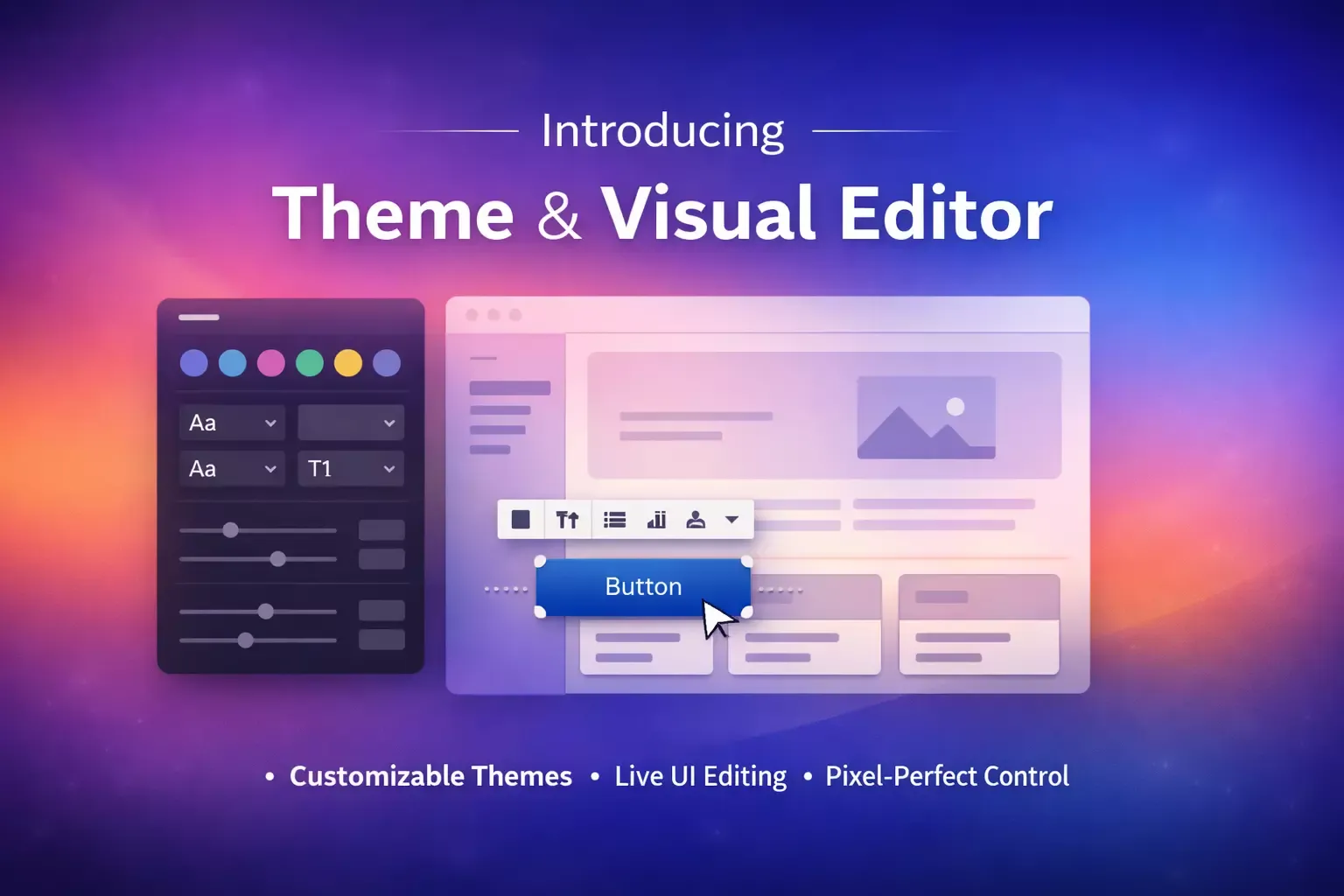
On this page
If you've ever built an app with AI, you know the drill: the AI can generate a stunning AI prototype in 10 seconds, but you may spend the next two hours “arguing” with the chat box just to change a button color or fix a cramped layout.
The root of this frustration is simple: without a Design System, the AI's output will rarely align with your personal aesthetic expectations.
When the AI's “default taste” clashes with your visual standards, you are forced to solve high-precision visual problems through the inherent ambiguity of natural language. You say, “make it a bit bigger,” and the AI interprets that as 5 pixels or 50. This inefficient back-and-forth makes the final mile of development unnecessarily draining.
To solve this mismatch between AI output and human intent, Atoms is officially launching Theme and Visual Editor.
Theme: Master Your Design System
The “unpolished AI look” often comes from the AI's inability to automatically adopt your unique taste, which can lead to inconsistent styles across different generated pages.
The power of Theme lies in your ability to define your own Design System.
You decide the visual DNA of your application. Theme allows you to define global variables, including palettes, typography, and spacing, directly within your project, much like working with an AI web designer. Once these rules are set, the AI stops guessing and starts creating within the professional boundaries you've established.
Combined with 14 designer-curated Theme templates, Atoms helps your app carry a professional, elegant brand identity that meets your standards from the very first screen.
What's in it for you?
- Brand Foundation: Quickly lock in visual benchmarks so your first batch of generated pages feels like a finished product.
- Long-Term Consistency: Maintain a unified style across long-cycle projects and prevent your design from drifting as you add more pages.
- Rapid Iteration: Update your entire site's look and feel instantly by modifying just a few core parameters.
Visual Editor: True WYSIWYG Precision
The Visual Editor allows you to modify the UI directly in the preview, making adjustments intuitive and deterministic.
Key Features
- Point-and-Click Editing: Skip long descriptions. Click any element in the preview to enter edit mode for precise UI changes.
- Direct Component Controls: No need for new prompts. Use the sidebar to tweak copy, colors, or fonts, with changes reflected instantly and no need to wait for AI regeneration.
- Add to Chat: Seamlessly switch between tweaking and refactoring. For complex logic or layout changes, one-click “Add to Chat” lets you guide coding agents with natural language for deeper component rebuilding.
What's in it for you?
- For Detail-Oriented Designers: Skip tedious prompting. Perform pixel-precise adjustments directly on the canvas, and experiment with margins and alignments in real time until everything feels right.
- For Team Collaboration and QA: Make walkthroughs much smoother. During live reviews, layout changes can be applied and hard-coded on the spot, saving you from endless to-do lists and feedback loops.
A Quick Start Guide
Before you build
The best time to use the Theme feature is during the preparation stage.
- Select one of our 14 premium Themes to set the tone for your project.
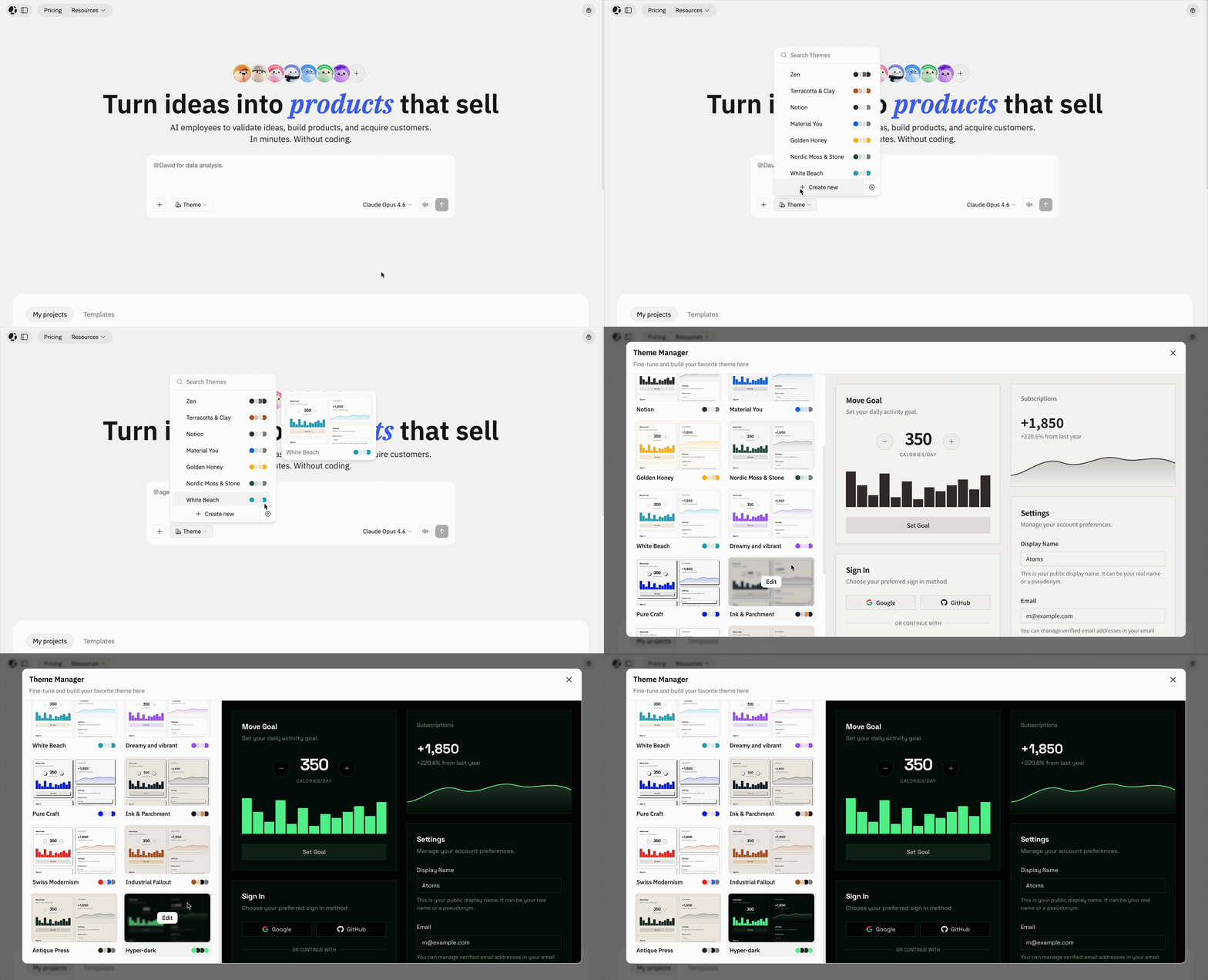
- Customize: Edit any element within these themes to reflect your personal brand, or choose Create New to build a proprietary theme from scratch.
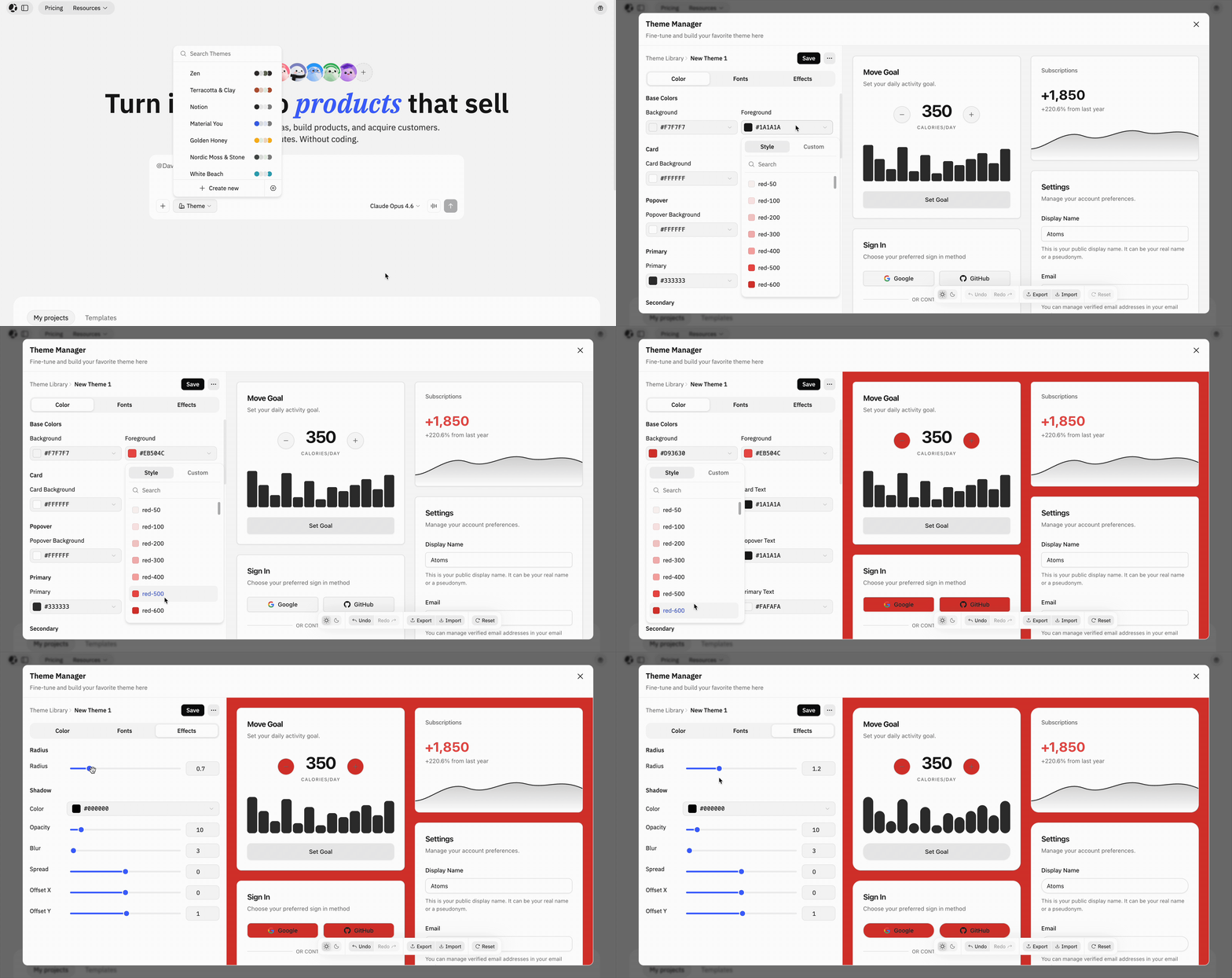
While you are building
Select Design below the App Viewer to open the Visual Editor. Click any element in the preview to adjust:
- Typography and font size
- Fill colors and borders
- And more
Need more control? You can also click an element and choose “Add to Chat,” allowing you to use language-driven agents for precise, code-changing AI refinements to that specific component.

From "Generating" to "Crafting"
The synergy between these two features reflects our core philosophy for vibe coding: Theme sets the rules, and Visual Editor perfects the details.
We want Atoms to be more than just a generation tool. We want it to be a creative platform that respects professional aesthetics and precise intent. By combining global consistency with granular control, we're ensuring your web apps are not only built faster, but also built better.
Visit atoms.dev today and experience app development with total control.
A little more clarity
Frequently asked questions
01What is the Theme feature in Atoms?
Theme is a feature that helps you define your app's Design System through global variables such as colors, typography, and spacing, so the AI can generate pages that better match your visual standards for an AI website builder.
02What does the Visual Editor do?
The Visual Editor lets you edit the UI directly in the preview. You can click elements, adjust styles in the sidebar, and make precise visual updates without relying entirely on an AI coding assistant.
03Why are Theme and Visual Editor useful for AI app development?
Together, they reduce the mismatch between AI-generated output and human intent. Theme ensures consistency at the system level, while Visual Editor gives you direct control over details, which is exactly why they matter for modern AI app builders.
04When should I use Theme?
Theme is best used during the preparation stage, before you start building, so your project has a clear visual foundation from the beginning.
05Can I still use prompts with Visual Editor?
Yes. If a change requires deeper layout or logic updates, you can use the “Add to Chat” feature to bring that component into a natural-language workflow.
Share this article
 Posts
Posts 