On this page
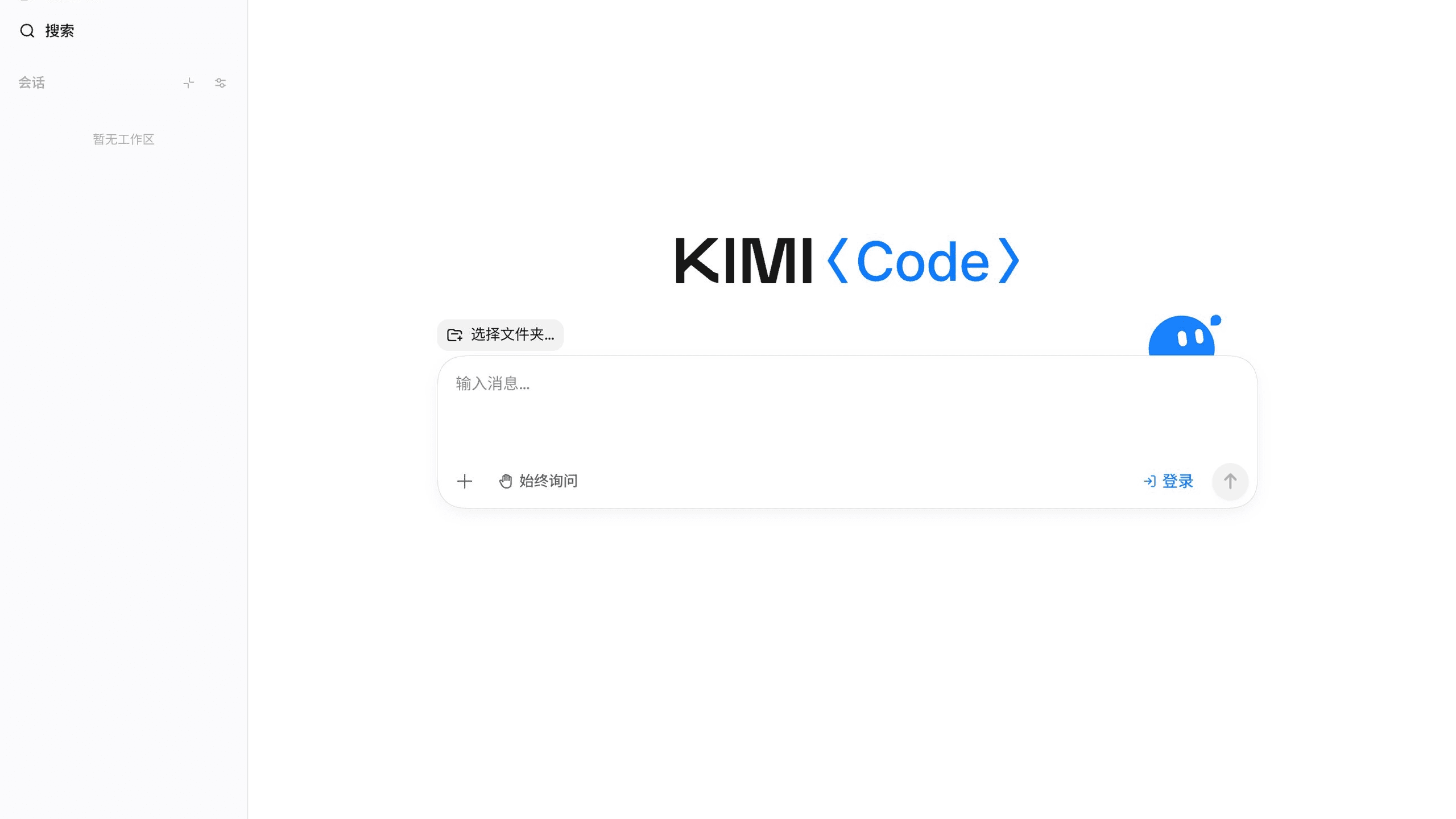
Kimi Code Desktop is the desktop client for Kimi Code, bringing its coding agent into a graphical interface. Open a local project, describe a task, and let the Agent read files, edit code, and run commands while you review its work. Available for macOS on Apple Silicon and Intel, and for Windows, it puts conversation, project context, and development tools in one window.
What is Kimi Code Desktop?
Kimi Code Desktop gives you a visual workspace for working with an AI programming assistant. You choose a project folder, start a conversation, and ask the Agent to help with tasks such as understanding unfamiliar code, implementing a feature, fixing a bug, or checking a build.
It carries the core agent capabilities of Kimi Code CLI into a desktop experience. The CLI suits developers who prefer working in a terminal or using scripted workflows. Desktop makes project navigation, conversations, file changes, and previews available through a graphical interface. Both clients can be installed on the same computer.
Kimi Code Desktop is also distinct from the general Kimi chat app and Kimi Work. Here, the focus is coding inside a selected local project: you provide the task, the Agent acts on the codebase, and you inspect the result.
What can you do in Kimi Code Desktop?
The main appeal is having the conversation and the tools for checking its outcome close together. These six features explain what that looks like in practice.
See what the Agent is doing
The interface makes the Agent's activity visible, including tool calls and file changes. Instead of relying only on a final message saying a task is complete, you can inspect the operations and review what changed.
For example, if you ask it to fix a form, the changed-file view helps you check whether it touched the expected component or also modified related files. That gives you a concrete starting point for review.
You also choose how much approval the Agent needs. The English documentation lists three permission modes:
| Permission mode | How approvals work |
|---|---|
| Always Ask | Requests approval for each operation that requires it. |
| Ask When Needed | Reduces repeated confirmations while retaining approval for key actions. |
| Never Ask | Does not proactively show approval prompts. |
For a first session, the documentation recommends Always Ask. Automatic execution is a workflow setting; it does not establish that the resulting code is correct.
Plan work and manage longer tasks
Some changes benefit from a plan before any files are edited. In Plan mode, the Agent analyzes the request and proposes an approach for you to review. You can clarify the scope or give feedback before implementation.
For work that takes several rounds, Goal mode supports an ongoing objective. Background tasks also let commands or subagents continue while you work in the main conversation, with status and output available for inspection.
Multi-agent collaboration is another option. The current documentation calls this Swarm: independent parts of an investigation or modification can be assigned to subagents. Parallel work depends on the task and request; it is not something every task automatically uses.
Throughout the process, you can send follow-up instructions to narrow the scope, add a constraint, or stop the current action.
Preview pages in the built-in browser
The built-in browser lives in the right-hand panel. Its tabs stay with the session, and page context is shared with the Agent.
For a web project, this brings the preview closer to the conversation. Once the local service is running, you can inspect a page in the app, identify an issue, and continue the coding task without moving to a separate window.
That is useful for changes whose outcome is visual. A successful build tells you something different from seeing whether a heading wraps correctly or a button fits on a narrow screen. The browser and terminal give you places to check both.
Point to the change you want
Describing a visual problem entirely in words can be awkward. Kimi Code Desktop provides several ways to give the Agent more specific context:
- Reference files or folders with
@. - Paste or drag relevant attachments into the conversation.
- Capture part of the screen and add a comment.
- Quote selected text or code when asking a follow-up question.
- Annotate an element or region inside the built-in browser.
A webpage annotation captures element details together with a screenshot and your comment. You can point to a crowded navigation bar and ask for more spacing, rather than explain its location from scratch.
The annotation identifies the target. You still review whether the Agent's change matches what you intended.
Review files and run checks in one window
The desktop client includes a terminal, a changes view, and file previews. Markdown rendering is available alongside previews for code, text, images, and other supported file formats.
After an edit, you can inspect the affected files, review the differences, and run the project's existing checks in the terminal. The terminal runs in the current workspace, so it is also useful for checking build output or Git status.
This makes the review process easier to follow: read the change, run the relevant command, and inspect the result. If a check fails, bring the output back into the conversation and ask the Agent to address that specific failure.
Keep projects and sessions organized
Kimi Code Desktop organizes conversations by workspace. You can switch between local projects and keep separate sessions for different tasks, such as investigating a bug and discussing a new feature.
Session tools include pinning, search, renaming, archiving, restoring, and forking. Titles are generated after the first turn and can be regenerated later.
These controls help when a project accumulates several conversations. Pin the task you are actively reviewing, search for earlier context, or fork a conversation to explore another direction. Keep each request clear about its scope, particularly when several sessions concern the same files.
Getting started with your first task
Download the installer for your platform, launch the app, and follow the account and model setup prompts. You can connect through a Kimi account or configure a supported third-party model provider. Available models and usage depend on your account or provider terms.
Next, create a session and select the local project folder you want to work on. The official documentation recommends starting with a read-only request to confirm that the Agent is looking at the right workspace.
For a website project, an example request is:
Find the homepage component, explain its structure, and propose a plan to improve its mobile layout before editing any files.
Review the response, clarify what should stay unchanged, and then proceed with the intended edits. Inspect the diff, open the page preview, and run the relevant build or test command. The documented /undo command can revert the most recent change when needed.
Installation and setup details are available in the official Desktop Quick Start. Feature descriptions here reflect documentation checked on September 17, 2026.
Atoms: A Coding Agent With No Download Required
If you want to try powerful coding agent capabilities online, you can try Atoms. Atoms is an AI product-building platform that turns natural-language ideas into editable websites and web applications. You describe what you want to build, review the generated product, and refine it through conversation—all without downloading a desktop client.
- Build from a written brief. Describe your audience, pages, features, and visual direction. Atoms can turn that brief into a working website or web app that you can preview and edit.
- Work with multiple agents. Specialized agents can collaborate across planning and building, helping move a product idea through the work needed to create it.
- Refine the result through conversation. Ask for changes to layout, content, or interactions, then inspect the updated preview. Focused requests let you improve the parts that need attention.
- Prepare for launch. Atoms supports backend and deployment workflows for projects that need them. Review integrations, accessibility, security, and performance before publishing.
This online workflow is useful when your next step is creating or iterating a web product. You might start with a landing page for a new service, a small application, or an interactive browser experience. Give the first version a clear purpose, then use the preview to decide what needs changing.
Here are three examples from the Atoms showcase:
Sportswear storefront
Sportswear E-commerce Website presents PULSE Sportswear, an e-commerce website focused on elegant, high-performance athletic clothing.
Luggage brand website
Luggage Brand Store Website showcases UNBREAK, a premium hard-shell luggage brand centered on durability during travel.
Browser-based island game
Cozy Island Game is a relaxed 3D browser game where players explore a tropical island at their own pace.
Try Atoms online to turn your web app idea into a project you can preview.
Conclusion
Kimi Code Desktop brings the coding-agent workflow into a visual environment for local projects. Its browser, annotations, terminal, and changes view help connect a request with the work needed to implement and check it. Start with a focused task and review the result as you go. If you prefer to build a website or web app online without installing a desktop client, try Atoms with a clear product brief.
A little more clarity
Frequently asked questions
01Q1: Which platforms support Kimi Code Desktop?
Kimi Code Desktop is available for macOS on Apple Silicon and Intel, and for Windows. Choose the installer that matches your computer. These options refer specifically to Kimi Code Desktop; other Kimi applications may have different platform requirements.
02Q2: Is downloading the app the same as getting free model access?
No. Installing the client and accessing a model are separate things. Model availability and usage depend on your Kimi account or configured provider. Check the current terms for the account you plan to use.
03Q3: Can I keep using Kimi Code CLI?
Yes. Desktop and the CLI can be installed on the same machine. The documentation says they share some local configuration, but the exact scope depends on their settings. You can use the interface that best fits the task.
04Q4: Can I ask for a plan before the Agent edits code?
Yes. Plan mode asks the Agent to analyze the task and propose an approach before changing files. It is useful when a request could affect several parts of a project or you want to agree on the scope first.
05Q5: Do I need to download Atoms to build a web app?
No desktop download is required for the online Atoms workflow. Describe the product, review its preview, and refine it through conversation. Check the generated application and its production settings before launching it.
Share this article
 Posts
Posts 