
On this page
The best AI assistant apps depend on the task and the tools you already use. ChatGPT and Claude cover writing and analysis, Perplexity supports sourced web discovery, and Gemini or Microsoft Copilot may fit your existing app environment. Notion AI and Lindy address workspace or connected workflows, while a product-building assistant fits website and app creation. Compare the work each can do for your account, then test how easily you can review the result.
Overview of 8 AI assistant apps
An AI assistant helps you work with information or complete tasks through natural-language instructions. The useful distinction is what it can do in your actual environment, with the tools and permissions you have enabled.
Here is a simple overview of AI assistant apps by task:
| App | Best-fit task | Working context | Useful output | What to check |
|---|---|---|---|---|
| Atoms | Building a website or web app | A natural-language product brief | Editable web product and preview | Requirements, integrations, and launch readiness |
| ChatGPT | General writing and analysis | Conversation, files, and available tools | Drafts, analysis, and research deliverables | Enabled features and source support |
| Claude | Document work and drafting | Supplied material and a defined project | Analysis, revised content, or an artifact | Fidelity to inputs and available tools |
| Google Gemini | Google-centered assistance | The Gemini app and supported connections | Responses and supported app assistance | Account, region, and connection availability |
| Perplexity | Web discovery | Research questions and web sources | Cited research synthesis | Relevance and support of the cited sources |
| Microsoft Copilot | Microsoft-centered assistance | Standalone or applicable Microsoft app offerings | Answers or supported productivity outputs | The specific product and plan |
| Notion AI | Workspace knowledge and collaboration | A Notion workspace and permitted sources | Answers, edits, or supported agent work | Workspace access and feature availability |
| Lindy | Connected task assistance | Supported apps and approved sources | Information retrieval and task outputs | Integrations and action-approval controls |
Conversation, assistance inside an app, and task execution overlap. A product may support several of them. Avoid choosing from labels such as “chatbot” or “agent” alone; inspect the capabilities and access that apply to the task you need done.
The recommendations below reflect documented capabilities and task fit. They are not a hands-on performance ranking.
8 tools to consider for everyday work
Choose an assistant that produces an output you can use and check. For connected tasks, also confirm what action has actually happened, what is proposed, and what still needs your review.
Atoms
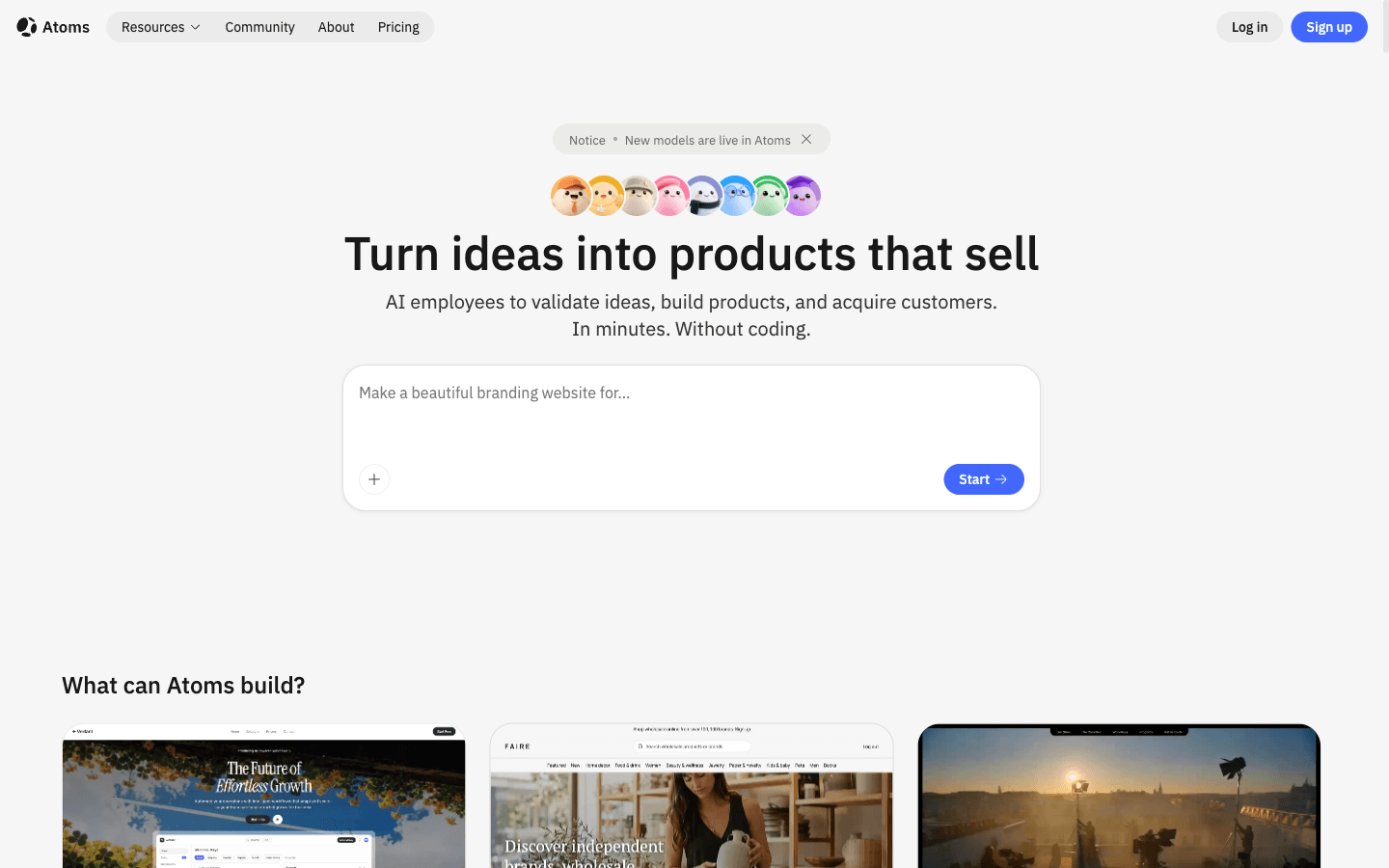
Atoms is an AI product-building platform for creating editable websites and web applications from natural-language requirements. Its place in this list is specific: helping turn an idea into a working web product. Consider it when the task is to create pages, interactions, and a launchable experience, rather than assuming it is a personal inbox or calendar assistant.
Main features
- Product briefs: Describe your audience, pages, visual direction, and primary interaction. A clear brief helps the platform build toward a concrete product, giving you something to review instead of only advice about how to create it.
- Coordinated creation: Specialized agents support the product-building workflow. Keep the required outcome explicit and review the generated work against it, especially when the project involves several pages, supporting content, or application behavior that must remain consistent.
- Editable preview: Request focused changes and inspect the resulting website or web application. Review backend settings, integrations, accessibility, security, and performance before deployment; a convincing interface does not establish that every production dependency is correctly configured.
Suitable for
- Founders turning a defined idea into a web application.
- Marketers creating a landing page or product website.
- Teams that need a working product to review and refine.
ChatGPT
ChatGPT supports general writing, analysis, and research through a conversational workflow and available tools. It is a practical option when your tasks vary from drafting a message to investigating a question or working with supplied information. Check the features available to your account and give clear instructions about what the result should contain and how you will evaluate it.
Main features
- Writing and revision: Turn notes into a draft, adjust tone, or improve structure through follow-up instructions. Specify the audience and purpose so the revision preserves the meaning you need rather than merely making the text sound more polished.
- Information analysis: Work with supplied material and available file capabilities. Ask for the evidence behind important conclusions and distinguish what the input states from what the assistant infers, especially when the output will support a decision.
- Research and tools: Available research and connected capabilities extend the workflow beyond simple responses. Confirm what is enabled and inspect the resulting deliverable or action status instead of assuming that a proposed step has already been completed.
Suitable for
- Professionals who need flexible drafting and analysis across changing tasks.
- Students seeking explanations and help organizing supplied material.
- Teams developing a research brief before deeper source review.
Claude
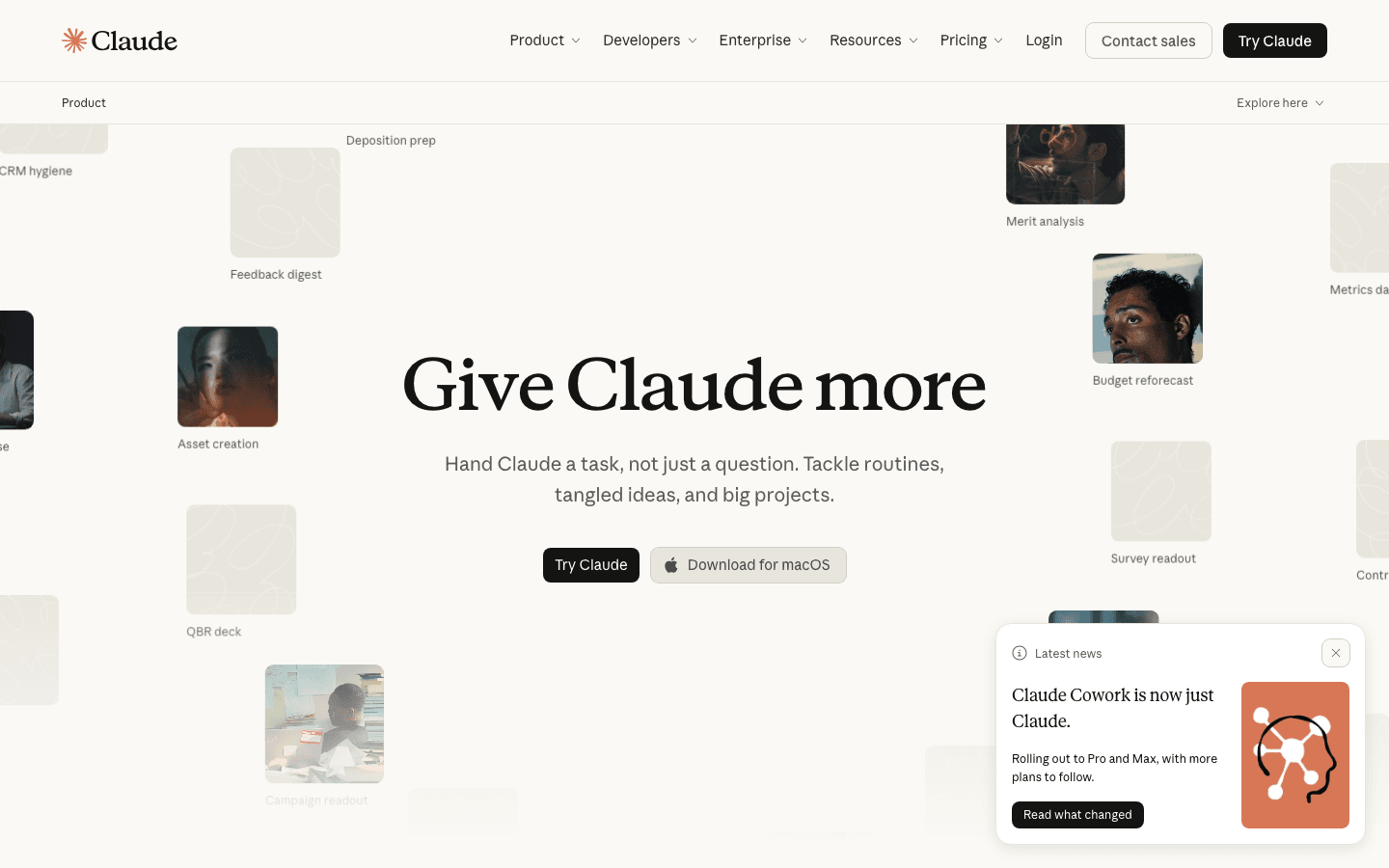
Claude supports writing, document analysis, and iterative work around supplied material or a defined project. It is worth considering when you need to compare text, revise a substantial draft, or develop an artifact from a clear request. Evaluate how well it preserves your inputs and qualifications; polished wording should not replace checking what the source actually says.
Main features
- Document analysis: Ask focused questions about supplied information and compare relevant passages. Give the analytical criteria and request support for consequential claims, so a summary remains tied to the material rather than drifting into plausible but unsupported interpretation.
- Iterative drafting: Refine structure, tone, or an argument through targeted instructions. State what must remain accurate and which parts may change, then check the revision for lost qualifications or altered meaning before using it elsewhere.
- Projects and artifacts: Organize work around a defined outcome and use supported artifact workflows where useful. Confirm what the artifact contains and what remains to be implemented or reviewed, particularly when a presentation or interface suggests functionality beyond the visible output.
Suitable for
- Writers revising substantial drafts with specific editorial requirements.
- Analysts comparing documents and extracting supported conclusions.
- Teams developing an artifact through several rounds of focused review.
Google Gemini
Google Gemini offers general assistance and supported connections within a Google-centered environment. Consider it when your everyday work already depends on Google apps and you want to explore the assistance available for that context. Availability varies by the specific feature and account, so confirm the connection you need rather than assuming all app capabilities are included.
Main features
- General assistance: Ask for help developing ideas, writing, or understanding information. Provide the task and expected output clearly, then check factual statements and instructions before relying on the response for consequential work.
- Google-app context: Supported app connections can bring relevant context into an assistant workflow. Verify which sources and actions are available for your account and region, and make sure the assistant is working with the information you intended to use.
- Flexible inputs and outputs: Use the supported capabilities appropriate to your task. Test a representative request before depending on a workflow, and assess whether the result is useful without extensive correction or movement between other tools.
Suitable for
- People whose daily work already centers on Google applications.
- Users exploring supported assistance for their existing Google account.
- Teams testing whether app context improves a recurring information task.
Perplexity
Perplexity is useful when the task begins with a question that needs web discovery and cited research. It helps organize findings so you can investigate the supporting sources rather than start from an unstructured set of pages. Evaluate those references carefully: relevance, dates, and the relationship between a source and a conclusion matter more than the presence of citations alone.
Main features
- Web discovery: Explore a topic through a defined question and identify sources worth reading. Narrow the geography, time period, or comparison when needed so a broad answer does not conceal a mismatch with your actual task.
- Cited synthesis: Research outputs link findings to supporting material. Follow the sources behind important claims and check whether they establish the conclusion, report someone else's opinion, or only cover part of what the answer suggests.
- Focused refinement: Investigate a subquestion or contradictory account through follow-up exploration. Tell the assistant what remains unresolved, rather than asking for a longer answer that repeats the same sources without improving the evidence.
Suitable for
- Professionals beginning source-based research on a new topic.
- Writers finding references to read and evaluate directly.
- Teams developing an initial comparison from public-web information.
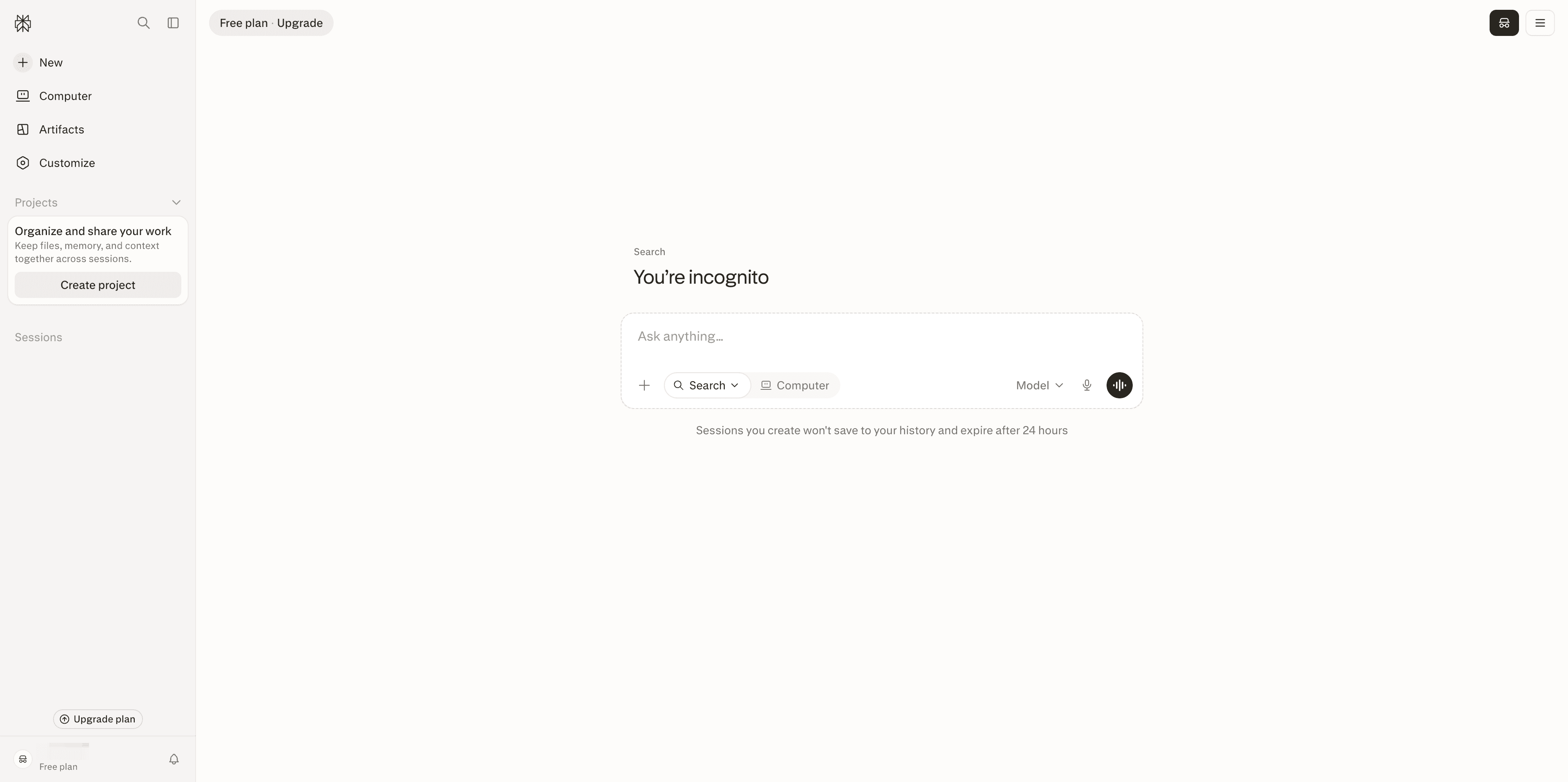
Microsoft Copilot
Microsoft Copilot covers several offerings, so begin by identifying the one relevant to your work. Standalone Copilot assistance and capabilities inside Microsoft 365 applications should not be treated as identical access. Consider it for a Microsoft-centered workflow, then confirm the specific plan, application, and account requirements before assuming an advertised feature is available to you.
Main features
- Standalone assistance: Use the capabilities offered by the applicable Copilot experience for general questions or supported tasks. Test the request you actually need to complete, rather than inferring its behavior from the features of another Microsoft product.
- App-based productivity: Applicable Microsoft 365 offerings provide assistance within supported applications. Check which app features your subscription includes so a document, spreadsheet, or presentation workflow does not depend on access you have not enabled.
- Workflow context: Assistance can be more useful when it fits the applications where the work lives. Confirm the available context and inspect the output, while distinguishing personal offerings from work or enterprise features described elsewhere.
Suitable for
- Users who already work extensively with Microsoft applications.
- Professionals checking assistance included in their current subscription.
- Teams evaluating a specific Microsoft productivity task and account setup.
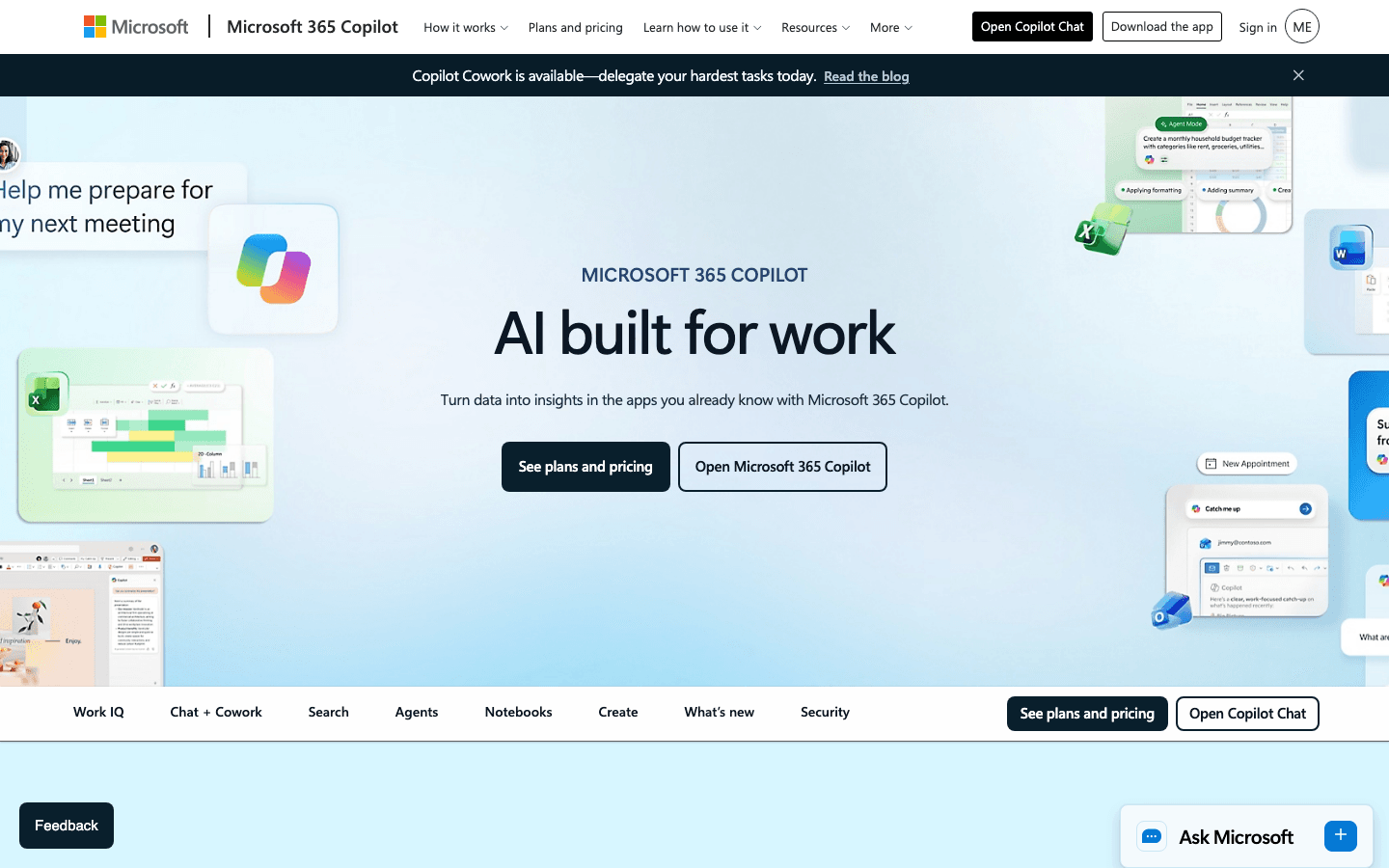
Notion AI
Notion AI supports work within a Notion workspace, including assistance with knowledge, content, and supported agent tasks. It is a sensible option when the information you need already lives there. Check workspace permissions and connected-source access before assuming the assistant can find or act on every relevant item across your organization.
Main features
- Workspace knowledge: Search and ask questions using the information the assistant is permitted to access. Inspect the supporting material behind an answer, especially when a workspace contains outdated instructions or several documents that describe different versions of a process.
- Content assistance: Draft or edit workspace material for a defined audience and purpose. Review the result for accuracy and fit with the team's existing documentation, instead of allowing an easier writing process to create more duplicate or conflicting content.
- Agent workflows: Supported agent features extend assistance to defined workspace tasks. Confirm availability, inputs, and permissions for the intended job, and check the actual changes before treating the workflow as complete or reusable by the team.
Suitable for
- Teams using Notion as a central place for working knowledge.
- Writers maintaining project documentation within an established workspace.
- Organizations testing a clearly scoped task with appropriate source access.
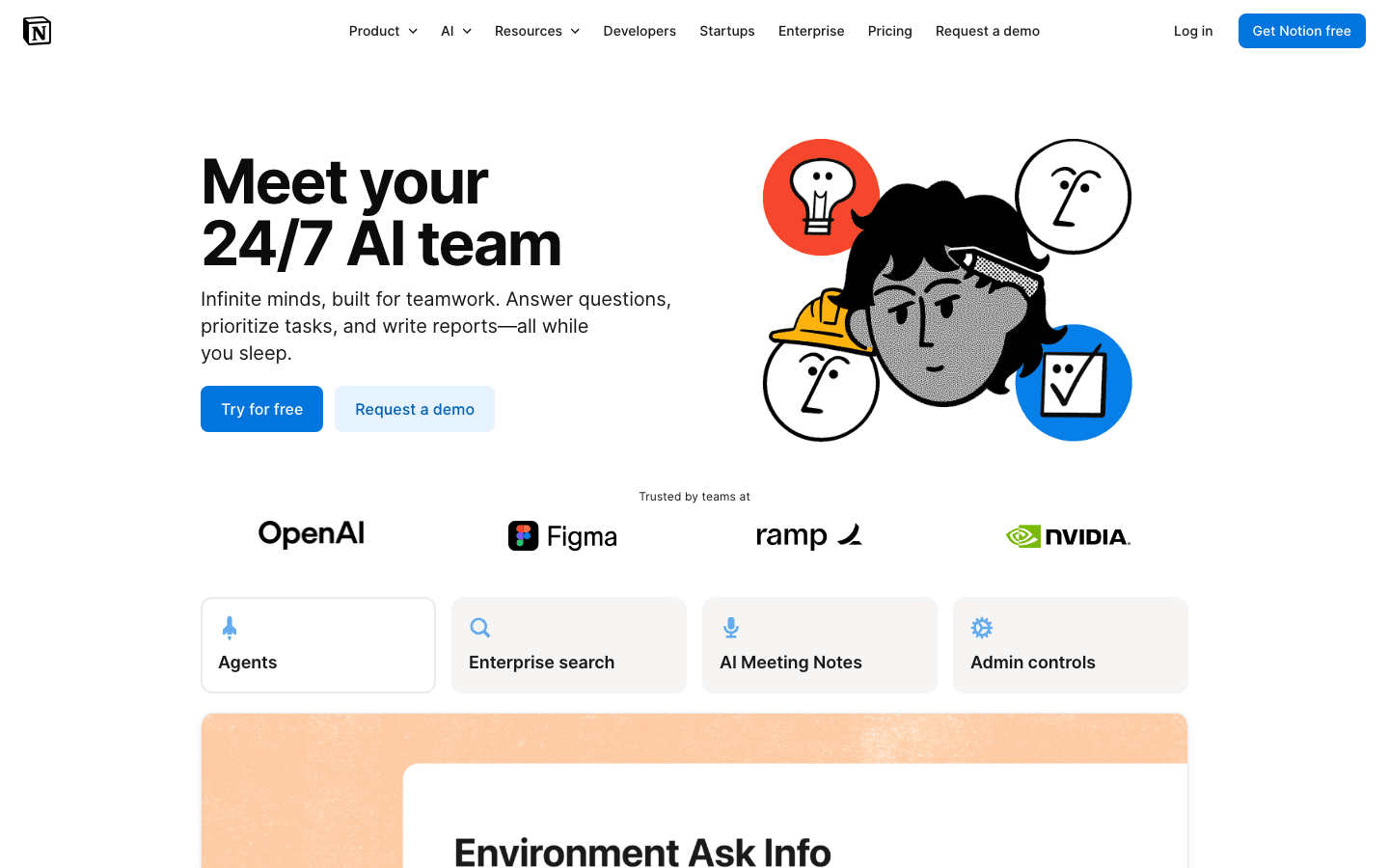
Lindy
Lindy supports connected assistance across approved apps and sources, including email and calendar contexts. Consider it when the recurring task requires information or actions across your existing tools. Start with a narrow workflow and examine its approval controls, so you can distinguish information retrieval from actions that affect another person or system.
Main features
- Connected information: Use supported integrations to obtain context for a defined question or task. Check that the intended source is connected and accessible, and that the result reflects the right account, document, or conversation.
- Task assistance: Delegate a bounded job with a clear expected output. Define what counts as complete and inspect that result before extending the workflow to additional tasks or treating it as a dependable recurring process.
- Review controls: Examine the product's action-approval process for the workflow you intend to use. Confirm which actions need approval and what you can inspect beforehand, rather than relying on broad claims of autonomy or convenience.
Suitable for
- Professionals testing connected assistance for repetitive work.
- Teams that need context from several approved sources.
- Users seeking explicit review points before consequential external actions.
How to choose an AI assistant app for your actual tasks
Test the same real task across a short list. A feature checklist helps narrow options, but the more useful question is whether an assistant produces work you can use without excessive correction.
Choose three representative tasks:
- Rewrite a message. Supply the audience, purpose, and facts to preserve. Check whether the output says what you mean and whether you can revise it without losing those facts.
- Summarize a document. Ask for source pointers and a distinction between statements and interpretation. Check important passages yourself and note where the summary omits a qualification.
- Handle a connected workflow. Choose a supported task in your environment. Ask the assistant to show what it found, what it proposes, and what action needs review. Verify the actual result after execution.
Score usefulness, correction effort, relevant tool access, review controls, and device fit. If your recurring need is website building, replace the connected-workflow trial with a product brief and evaluate the working preview against that brief.
Use a starter instruction that makes the work inspectable:
Use the supplied document to prepare a concise project update for the team. Keep the stated facts unchanged, show the source for each important claim, and list unresolved questions. Draft the update first. Any external action should follow the review controls required for this task.
Check current plans and usage limits before committing. A free option may help you test a workflow, but the features you need could depend on account type, region, connected apps, or paid access. Do not assume that a mobile app and desktop experience support every action in the same way.
Finally, compare the assistant's output with your definition of complete. Drafting an email, preparing an email for approval, and sending an email are different states. Likewise, creating an interface and deploying a reviewed application are different outcomes. Choose a tool that makes those states understandable in the workflow you use.
How Atoms acts as an assistant for building digital products
Atoms helps when the desired output is a website or web application. Describe the product in natural language, inspect the generated experience, and refine it through focused requests. Its role is to connect requirements with an editable digital product, giving founders, marketers, and teams a concrete result to review.
- Specify pages and interactions: Explain who the product serves, what visitors should do, and which content or data the experience requires. Clear requirements make the preview easier to evaluate.
- Coordinate product creation: The platform supports specialized agents across the product workflow. Review the generated product against your brief instead of assuming coordination removes the need for judgment.
- Refine the working experience: Request changes to layout, content, or behavior and inspect the preview. Check different screens and the core interaction before deciding the product is ready.
- Review launch dependencies: Verify backend settings, integrations, accessibility, security, and performance. A completed interface is one part of a launch decision, not evidence that all external services are configured.
The projects below show concrete website outputs for different product briefs. They illustrate the product-building role of an assistant, rather than personal email, scheduling, or general task automation.
Modern & Decorative Vases Online Store This e-commerce website presents modern decorative vases and home accessories. It illustrates a website output for a defined product-building task.
Beverages Online Store This online store presents beverages for sale. It illustrates a product-specific e-commerce website.
Digital Watches Online Store TNNEY / Sport Time is a landing page and e-commerce experience for a premium sports-watch brand. It illustrates how a focused product brief can become a website.
Turn your product idea into a website or web app. Start building.
Explore more Atoms project examples to identify a useful format for your own product before writing its brief.
Conclusion
Choose an assistant around the work you repeat and the output you need to inspect. Test real inputs, count the corrections that matter, and confirm the apps and actions available to your account. Use a specialist when the task has a clear specialist outcome. When that outcome is a website or web application you can refine and review, start building with Atoms.
A little more clarity
Frequently asked questions
01Q1: Which assistant should I try for writing and research?
Try ChatGPT or Claude for a representative writing or document task, and consider Perplexity when web discovery and cited synthesis are central. Compare results on material you understand, including the corrections each needs. The best fit depends on your task, available features, and ability to inspect the output, not a universal ranking.
02Q2: Do AI assistant apps work on both mobile and desktop?
Check the current platforms and features offered by each product. Access across devices does not guarantee identical file support, app connections, or action capabilities. Test the workflow on the device you will actually use, and confirm the account and permissions before relying on it for a recurring task.
03Q3: Are free plans enough for everyday tasks?
That depends on the task and current limits. Check official plan details for the features, usage, file handling, and connections you need. Start with a small representative trial where available, then decide whether the resulting workflow justifies paid access. Avoid choosing from an old quota or an assumption that all advertised features are included.
04Q4: What can I build with Atoms?
Atoms supports websites and web applications created from natural-language requirements. You can describe pages, content, and interactions, inspect a preview, and request changes. Depending on the project, the workflow can include backend infrastructure and supporting media. Review the actual implementation and relevant launch settings before deploying a product people will rely on.
05Q5: Does Atoms manage my inbox and calendar?
The recommendation here concerns Atoms' documented website and web-application building workflow. Do not assume personal inbox or calendar automation is included. If your main task is scheduling or connected email assistance, evaluate a product that documents the specific integration and review controls you need, then test it with your actual account setup.
Share this article
 Posts
Posts 