On this page
The best AI design tools depend on what you need to deliver: an image, an editable marketing layout, a UI prototype, a video, or a working website. Canva fits recurring visual content, Figma supports interface collaboration, and specialist image and video tools serve different creative tasks. Compare the seven options below by their output, editing controls, and the work left after the first generation.
Best AI design tools at a glance
Start with the artifact your next collaborator needs. A striking image can inspire a website, but it does not supply the page's text fields, navigation, or behavior.
This is an editorial shortlist organized by creative task, rather than a scored performance test. Atoms appears first as our own product; each option is assessed through the same output, control, and finishing-work lens.
| Tool | Main output in this comparison | Useful control | What to check |
|---|---|---|---|
| Atoms | Working websites and web applications | Conversational changes and integrated media | Content and behavior before launch |
| Canva | Marketing layouts and presentations | Editable composition with AI assistance | Brand consistency and format adaptation |
| Adobe Firefly | Generated or edited image assets | Prompts and selected-area image edits | Detail accuracy and final composition |
| Figma | Interface designs and interactive drafts | Shared design structure and AI workflows | Which Figma product produces your deliverable |
| UX Pilot | UI screens and user-flow drafts | Wireframe generation and Figma workflow | Flow completeness and implementation needs |
| Midjourney | Images and visual concepts | Prompt direction, references, regional edits | Subject fidelity and downstream layout work |
| Runway | Video and motion assets | Text or image inputs with generation controls | Motion coherence and final placement |
Seven AI design tools for different creative tasks
These tools solve different parts of a creative job. Their suitability depends on whether your bottleneck is generating material, composing a design, agreeing on an interface, or building the experience around it.
Atoms
Atoms is an AI product-building platform that turns natural-language requirements into editable websites and web applications. It suits creative work whose destination is a browser experience, such as a product launch page combining copy, imagery, and interactions. Its website and media capabilities connect those pieces, although the generated result still needs review before publication. Choose it around the experience you want visitors to use.
Main features
- Natural-language building: Describe the audience, pages, visual direction, and primary action to generate a working starting point. This gives teams a concrete experience to inspect while they refine the brief.
- Integrated image and video creation: Generate visual assets and place them within the website. Designers can evaluate how imagery supports the surrounding copy and layout instead of approving assets in isolation.
- Conversational refinement: Request changes to content, layout, or interaction, then preview the result. Focused revisions let a team develop the chosen direction while checking whether important details remain intact.
Suitable for
- Founders turning a product idea into a website or web application.
- Marketers building campaign pages that combine visual assets with an action.
- Small teams reviewing a browser experience before committing to launch.
Canva
Canva is a visual design platform with AI tools for generating and editing content within a composition workflow. It is a practical starting point for social graphics, presentations, and recurring marketing materials, particularly when several people need to update the same kind of asset. The key decision is whether its editing and brand controls fit your work; confirm access to the specific features you intend to use.
Main features
- AI-assisted design drafts: Use content and prompts to develop a starting layout. This helps a marketer move into selecting and arranging material rather than deciding every element on an empty page.
- Text and image assistance: Generate copy or adjust visual material alongside the design. Keeping these activities near the composition makes it easier to judge whether wording and imagery work together.
- Brand context: Apply the relevant brand guidance within supported workflows. This can anchor recurring content, but a person should still check font choices, colors, hierarchy, and whether the message fits the audience.
Suitable for
- Marketers producing repeatable social, presentation, and promotional layouts.
- Creators who want to refine generated content in a visual composition.
- Small teams that need a shared approach to everyday brand materials.
Adobe Firefly
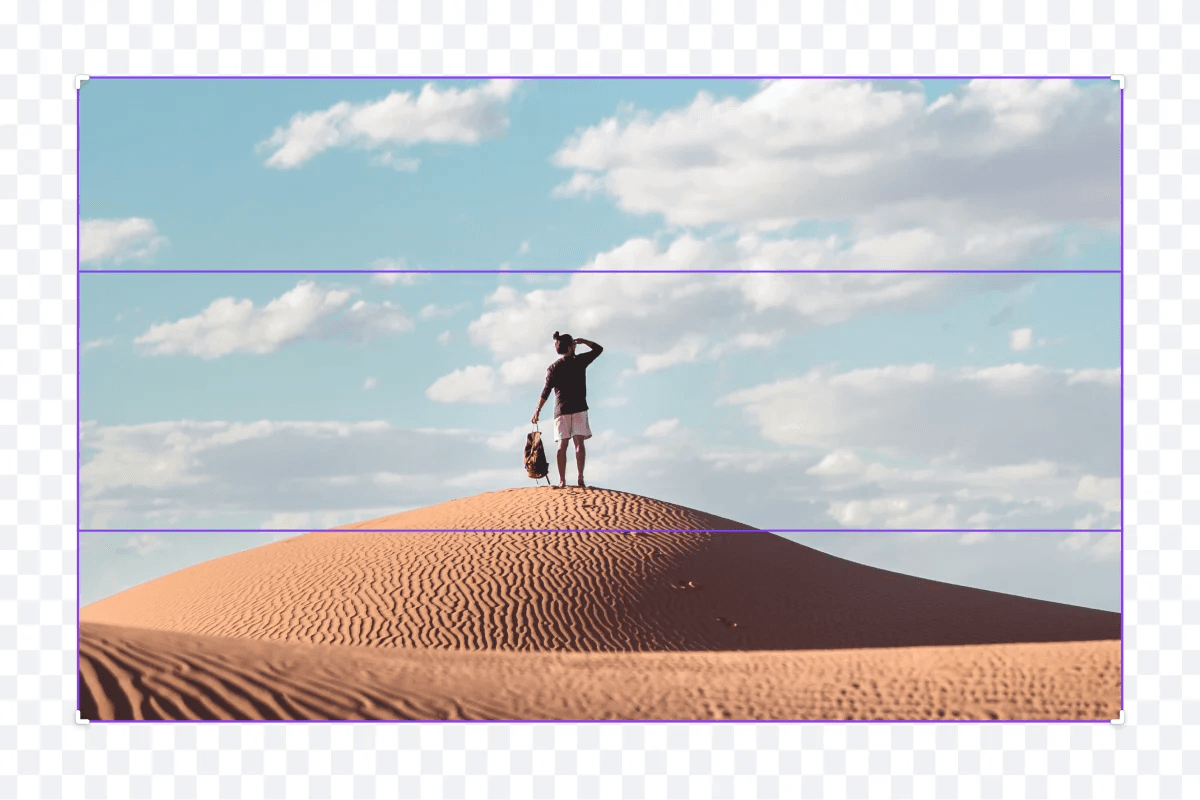
Adobe Firefly is a generative creative platform; its image tools are useful when the missing piece is a visual asset or a change within an existing image. For example, you might explore a background concept or replace a selected region. Treat that output as material for a design: an image still needs an appropriate crop, accurate content, and a place in the final layout.
Main features
- Text-to-image generation: Describe a scene or visual direction to create candidate imagery. This gives art directors and marketers material to compare before selecting a composition for a particular placement.
- Selected-area generative fill: Mark an area and describe the addition or replacement. Local selection is useful when the brief concerns one part of an image rather than an entirely new scene.
- Image refinement workflow: Combine generated alternatives with further edits to develop the chosen asset. Inspect the result at its intended display size, especially where fine details or surrounding edges affect credibility.
Suitable for
- Creative teams developing image directions for campaigns or website sections.
- Designers who need to add or replace selected visual elements.
- Marketers preparing supporting imagery for a separate layout or page workflow.
Figma
Figma is a collaborative design platform with AI capabilities across several products. Figma Design supports interface work that teams can organize and refine together, while Figma Make provides a prompt-driven route to interactive outputs. That distinction matters: selecting “Figma” alone does not specify what your colleague will receive. Decide whether the task ends with a design file, a prototype, or a published experience.
Main features
- Reusable design structure: Build interface work around shared components and patterns. This helps teams apply a common visual language when several screens or contributors are involved in the same product.
- AI assistance in Design: Supported AI tasks help develop and edit design work in the canvas. Feature access depends on the relevant plan, seat, permissions, and organization settings, so check your workspace.
- Interactive generation with Make: Turn a prompt or existing design direction into an interactive draft and refine it. Publishing is available through supported workflows, but a working preview still needs functional review.
Suitable for
- Product designers coordinating interface decisions across a team.
- Teams maintaining reusable patterns while exploring new screens or flows.
- Designers comparing an interactive idea with an existing visual direction.
UX Pilot
UX Pilot is an AI interface design tool focused on generating screens, wireframes, and user-flow drafts. It fits the stage where a team needs to make a product idea visible and explore how several screens relate. Its Figma workflow also matters when design refinement continues there. A coherent screen set is a starting point for discussion, not evidence that every interaction has been implemented or validated.
Main features
- Wireframe and UI generation: Describe the intended interface and generate a low- or high-fidelity starting point. Choose the level of detail that matches the question you need stakeholders to answer.
- Flow exploration: Develop related screens rather than evaluating only an isolated homepage. This helps expose questions about navigation, information hierarchy, and the next action in the proposed user journey.
- Screen refinement and Figma workflow: Revise generated interface work and continue within a design workflow that supports further editing. Inspect the transferred structure before assuming it matches your team's component conventions.
Suitable for
- Product teams converting rough requirements into interface options for discussion.
- Designers exploring screen structures before polishing an established direction.
- Teams that want AI-generated UI material to continue refining in Figma.
Midjourney
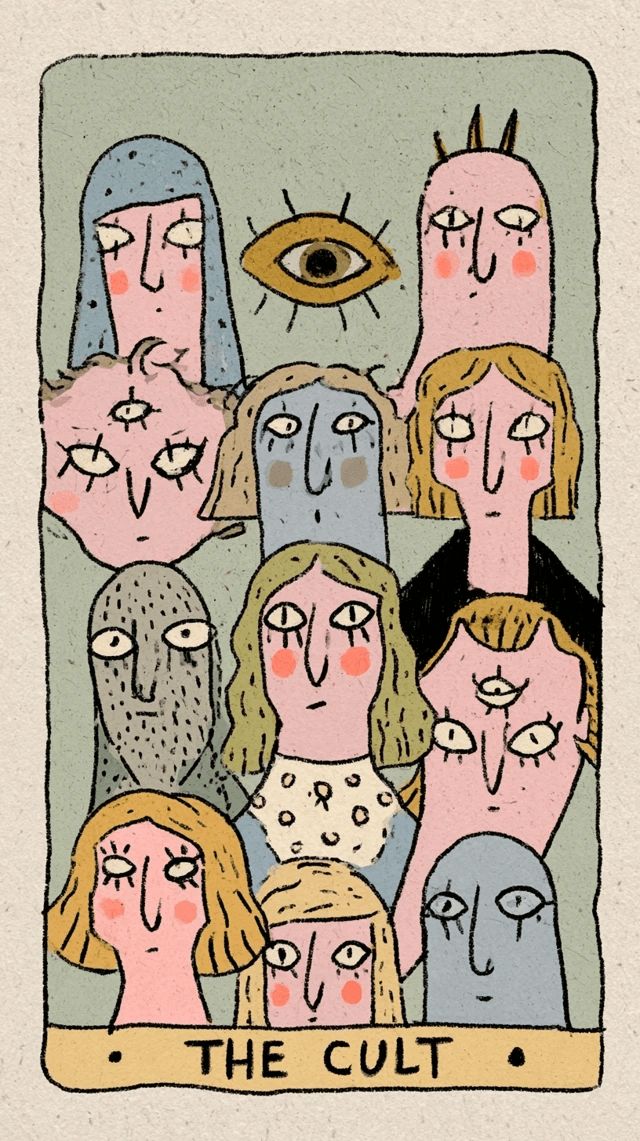
Midjourney is an image-generation tool for developing visual concepts from prompts and references. It fits moodboards, illustration directions, and campaign imagery when the main decision concerns the look of an image. Its references and editing tools provide ways to steer that exploration. The result remains imagery: a picture of a polished interface does not contain the editable buttons, text, or behavior of that interface.
Main features
- Prompt-led imagery: Specify the subject, composition, medium, lighting, and mood to explore a visual idea. Keep the intended placement in mind so a compelling concept also leaves room for surrounding content.
- Style references: Use an image to influence visual characteristics such as color, texture, or lighting. A style reference guides appearance; it does not promise to reproduce the reference's objects or people.
- Regional editing: Refine parts of an image within the editing workflow. This can support a chosen direction, although you should inspect changes for subject consistency and unintended alterations before final use.
Suitable for
- Art directors comparing possible illustration or campaign directions.
- Designers preparing moodboards and imagery for a broader creative brief.
- Creators who will compose the final layout around a selected image.
Runway
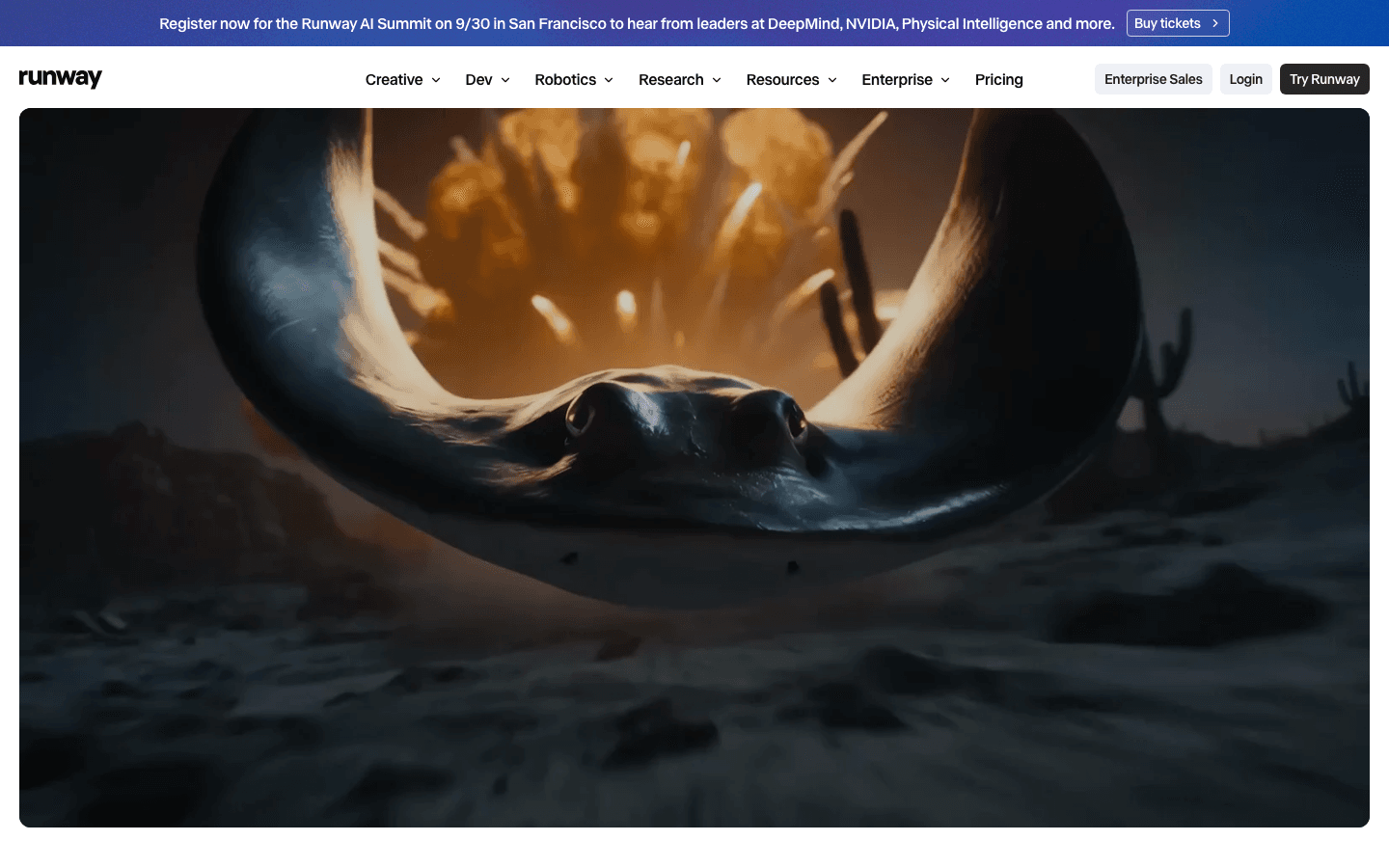
Runway is a generative creative platform with tools for making video from text or image inputs. It is relevant when motion, rather than a still layout, carries the idea: a campaign clip, a visual transition, or an exploratory moving scene. Evaluate the full sequence, not its most attractive frame. Video selection, final assembly, and the requirements of the publishing destination remain part of the job.
Main features
- Text-to-video creation: Describe a scene and its movement to generate candidate footage. This gives a creative team a way to explore motion direction before choosing what belongs in the final piece.
- Image-to-video inputs: Start with visual material to guide a moving result. This is useful when an approved image direction provides a clearer creative anchor than a description alone.
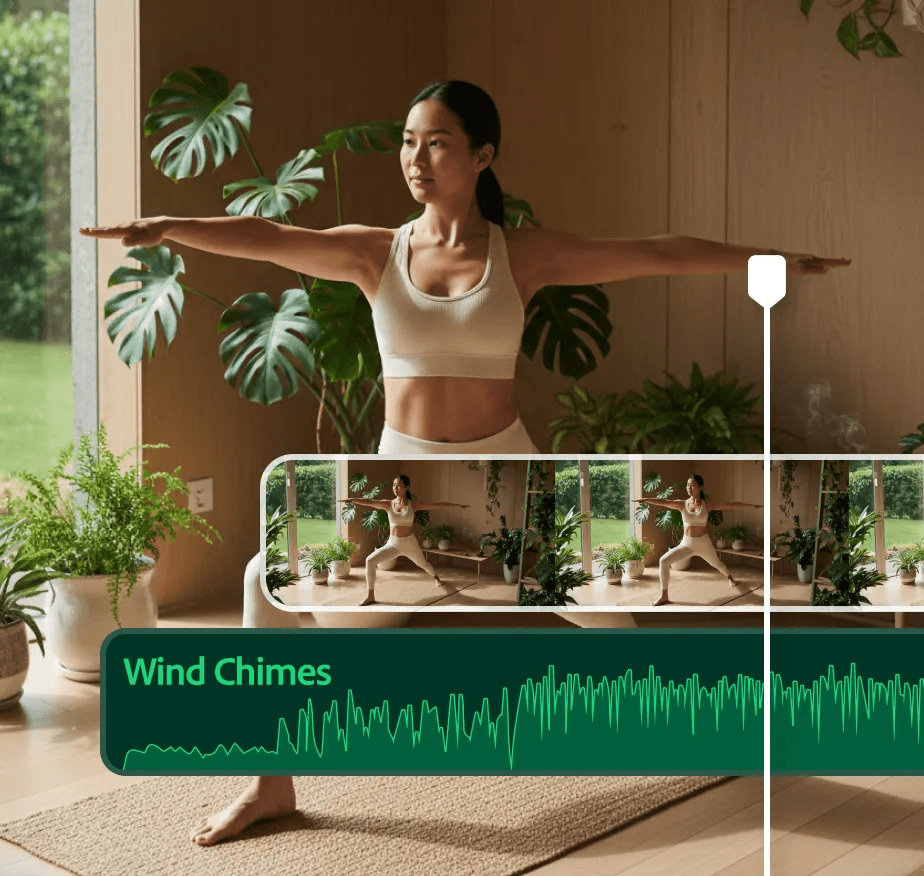
- Generation controls and iteration: Adjust the supported inputs and settings, then compare results against the brief. Inspect subject continuity, movement, and whether the clip communicates the intended message throughout its duration.
Suitable for
- Campaign teams exploring video concepts and supporting motion assets.
- Creators developing movement from an existing image direction.
- Designers who need footage for a larger page or presentation composition.
How Atoms helps turn visual direction into a website
A campaign can reach an awkward handoff: the imagery is approved, but the website that gives it context still needs to be built. Atoms connects a natural-language product brief with an editable website or web application, including supporting media. It provides a working version to review, iterate, and prepare for publication.
For this kind of project, three parts of the workflow are especially relevant:
- Describe the whole experience. Include the intended audience, page sections, message, and action alongside the visual mood. Atoms can use that direction to build the website. The practical benefit is reviewing the image, headline, and interaction as one composition. Supply real content where accuracy matters, rather than judging a page only by placeholder text.
- Develop media in context. Atoms can generate images and video and insert them into the website. You can also work with supplied media. Judge whether each asset clarifies the offer and works at the actual crop and size. Review media rights and factual accuracy before publication, especially when imagery represents a real product.
- Refine through focused requests. Ask for a layout, copy, or interaction change, then inspect the updated result. For example, a team could ask to simplify a hero section while preserving the product story. Keep the revision tied to a specific problem. Test content, accessibility, integrations, security, and performance before using the site in production.
These projects illustrate different retail directions for a website. Their descriptions identify the project and positioning; they do not establish conversion results or show which assets were AI-generated.
Sportswear E-commerce Website PULSE Sportswear is an e-commerce website centered on elegant, high-performance sports clothing.
Men’s Multi-Category Clothing GRAYSTATE is a premium, minimalist menswear website built around a streamlined wardrobe.
Luxury Evening Wear NOCTURNE is an eveningwear and formalwear e-commerce website with an elegant shopping direction.
How to choose the right tool
Use a small, representative job to compare candidates. The useful question is how you finish the work and make the next change, not just how impressive the first output looks.
For example, use an illustrative brief for a new desk-lamp campaign: a calm visual direction, supplied product photography, a short benefit statement, and an invitation to explore the product. Keep the facts constant across tools, but request the output each is meant to produce.
- Specify the deliverable. Ask for an editable social layout, an image asset, a UI draft, or a video. Do not score an image generator poorly for failing to build navigation it was never meant to deliver.
- Make a second edit. Change the headline, replace one visual, or adjust a section while preserving approved work. This exposes the editing workflow you will use repeatedly after the initial generation.
- Use real brand material. Test actual names, copy lengths, colors, and reference assets. A tool that looks convenient with generic content may require a different workflow once brand constraints arrive.
- Check the handoff. Confirm what a teammate receives and can change. Distinguish an exported image, editable composition, design file, code, and hosted page before agreeing on a delivery format.
- Check access and total effort. Confirm required features, usage limits, export options, and the current plan. Include the time needed for manual finishing and review when comparing the practical cost of the workflow.
If two options both fit, choose the one that reduces your actual bottleneck. A marketing team revising copy every week has different needs from a designer exploring a single visual concept.
Practical uses for AI design tools
AI design tools for creating professional visuals are most useful when you pair the generated artifact with a clear finishing step. Here are five jobs that make those handoffs concrete.
- Social and advertising layouts: Draft alternative arrangements for a supplied headline and product image. Then verify reading order at the final display size, replace unsupported copy, and adapt the approved composition to each placement.
- Website hero imagery: Explore a background or supporting illustration with space for the headline. Review the crop on narrow screens and keep essential product facts in real page text, where they remain editable.
- Interface exploration: Generate alternatives for a signup or browsing flow. Use the screens to discuss the order of decisions, then add missing states and validate the journey before treating the design as implementation-ready.
- Presentation graphics: Develop a visual explanation or supporting illustration for a slide. Keep labels and numbers accurate, and ensure that the audience can understand the point without deciphering decorative detail.
- Short campaign video: Generate a motion direction from the brief or a supplied image. Select footage for continuity and message clarity, then assemble it with the required text, audio, and destination-specific formatting.
Brand concepts deserve particular care. AI can help explore a palette, typography direction, or visual theme, but matching assets alone do not settle positioning or establish a complete identity. Use the generated work to make a decision that people can explain and maintain.
Conclusion
A useful AI design workflow ends with an artifact you can revise, hand off, and use in its intended setting. Choose around that destination, then test a realistic change before committing to the tool. Keep creative direction and final judgment with the team. If your next deliverable is a website that brings content, imagery, and interaction together, start with a clear brief in Atoms.
A little more clarity
Frequently asked questions
01Q1: Which AI design tool should a beginner start with?
Start with the output you need. Canva is a practical option for everyday marketing layouts; an image tool suits visual exploration; an interface tool suits screen design. Try one small job and one revision before expanding your workflow.
02Q2: Can AI design tools create professional visuals?
They can generate and refine material used in professional work. The finished quality still depends on the brief, content accuracy, typography, composition, and review. Judge the result in its actual placement rather than only in the generation preview.
03Q3: Is an AI-generated UI image a working website?
No. An image shows an appearance without implementing its controls. Some tools generate interactive outputs, including Figma Make and website builders, but you still need to verify navigation, form behavior, content, and publishing requirements.
04Q4: Can Atoms create both a website and its visual assets?
Yes. Atoms supports website and web application creation, along with image and video generation and placement in the site. Provide the visual direction and product requirements together, then review the assembled experience before launch.
05Q5: What should I check before choosing a paid plan?
Check access to the exact editing features, generation limits, export formats, collaboration needs, and current usage terms. Test the workflow with your real content. A low entry price is less informative than whether the plan supports your recurring job.
Share this article
 Posts
Posts 