On this page
The best AI image generator depends on the next step: ChatGPT for conversational revisions, Pixlr for a browser editing workflow, Atoms for visuals created alongside a website or web app, DeepAI for prompt-led concept exploration, plus Canva and Adobe Firefly as account-specific candidates that need current verification. For AI generated images you can actually publish, judge composition, editability, usage conditions, and fit in the final layout—not just the most impressive thumbnail.
Building a page around the image? Start with your website and visual brief in Atoms so the asset has a clear job from the beginning.
Choose by the job after generation
Text-to-image tools synthesize an image from a description of what you want to see. You provide the subject, setting, composition, and constraints; the model produces an interpretation, which you may need to revise. That is different from finding an existing stock photograph with a guaranteed match.
The best AI graphic generator for your workflow should make those revisions manageable. If you need a hero image, a subject placed on the wrong side can be a larger problem than a small difference in visual detail.
| Tool | Recommended starting point | Documented workflow | Check before committing |
|---|---|---|---|
| ChatGPT | Iterating through a conversation | Generate or edit with natural-language instructions and reference images | Whether targeted edits preserve everything else you need |
| Pixlr | Generating and refining in a browser | Text and reference inputs, visual controls, and a handoff to Pixlr Express | The available model, editing controls, and final export in your account |
| Atoms | Creating visuals for a web product | AI image generation alongside website and web-app building | Image-specific controls and the asset's behavior in the actual page |
| Canva | An account-specific candidate to verify | Its current workflow could not be independently reviewed for this article | Whether your account has the controls, assets, and usage terms you need |
| DeepAI | Exploring a visual concept from a prompt | Text prompt, style and shape controls, editing and download options | Whether the selected settings and output meet the intended use |
| Adobe Firefly | An account-specific candidate to verify | Its current workflow could not be independently reviewed for this article | Which controls, plan terms, and downstream workflow apply to your account |
These are workflow recommendations based on documented capabilities, not scores from a hands-on image benchmark. They are not a claim that one tool produces the best image for every prompt.
Use the same criteria for all six: control over the input, ease of revision, usefulness of the final file, and terms that fit your project. “Free to generate” is not enough if the version you need cannot be exported or used as intended.
Six AI image generators worth considering
Choose the tool whose editing path fits how you work. The important difference is often what you can do after the first result disappoints you. Atoms appears third because this roundup includes it as a web-product workflow, not as a claim that it is a universally superior standalone generator.
1. ChatGPT: for conversational image revisions
ChatGPT's image-generation documentation describes generating images from natural language and attaching reference images for edits or visual guidance. It also recommends stating what should change and what should remain the same.
That makes it a reasonable starting point when you can describe a revision more easily than operate a detailed editing interface. For example, ask for an editorial illustration, then request a quieter background while preserving the subject and framing.
A useful instruction is:
Keep the person, desk, camera angle, and crop unchanged. Replace only the bright wall art with a plain warm-gray wall. Do not add text or new objects.
The instruction defines the desired boundary; it does not guarantee pixel-perfect preservation. Compare the revised image with the original, especially around faces, product details, and required text. Availability and usage limits depend on the plan and workspace.
2. Pixlr: for a browser-based generate-and-edit workflow
Pixlr's generator documents text prompts, reference-image input, and controls for style, lighting, color, composition, and aspect ratio. Generated images can be opened in Pixlr Express for further work, including generative fill or expansion.
Consider this workflow when you want to move between generation and image editing rather than keep every adjustment inside a chat. A useful trial is to generate a campaign background, change its framing, and see whether the final crop still supports your headline.
The range of controls is not proof that a particular image will be accurate. Check the model and options actually available to you, and export a sample before planning a larger batch. Avoid choosing on a model name alone when your real requirement is a usable image at a specific destination.
3. Atoms: for images that belong inside a website or app
Atoms supports AI image generation as part of its product-creation workflow, alongside building and iterating websites and web applications. Its relevance here is the surrounding product, not an unsupported claim of superior standalone image quality.
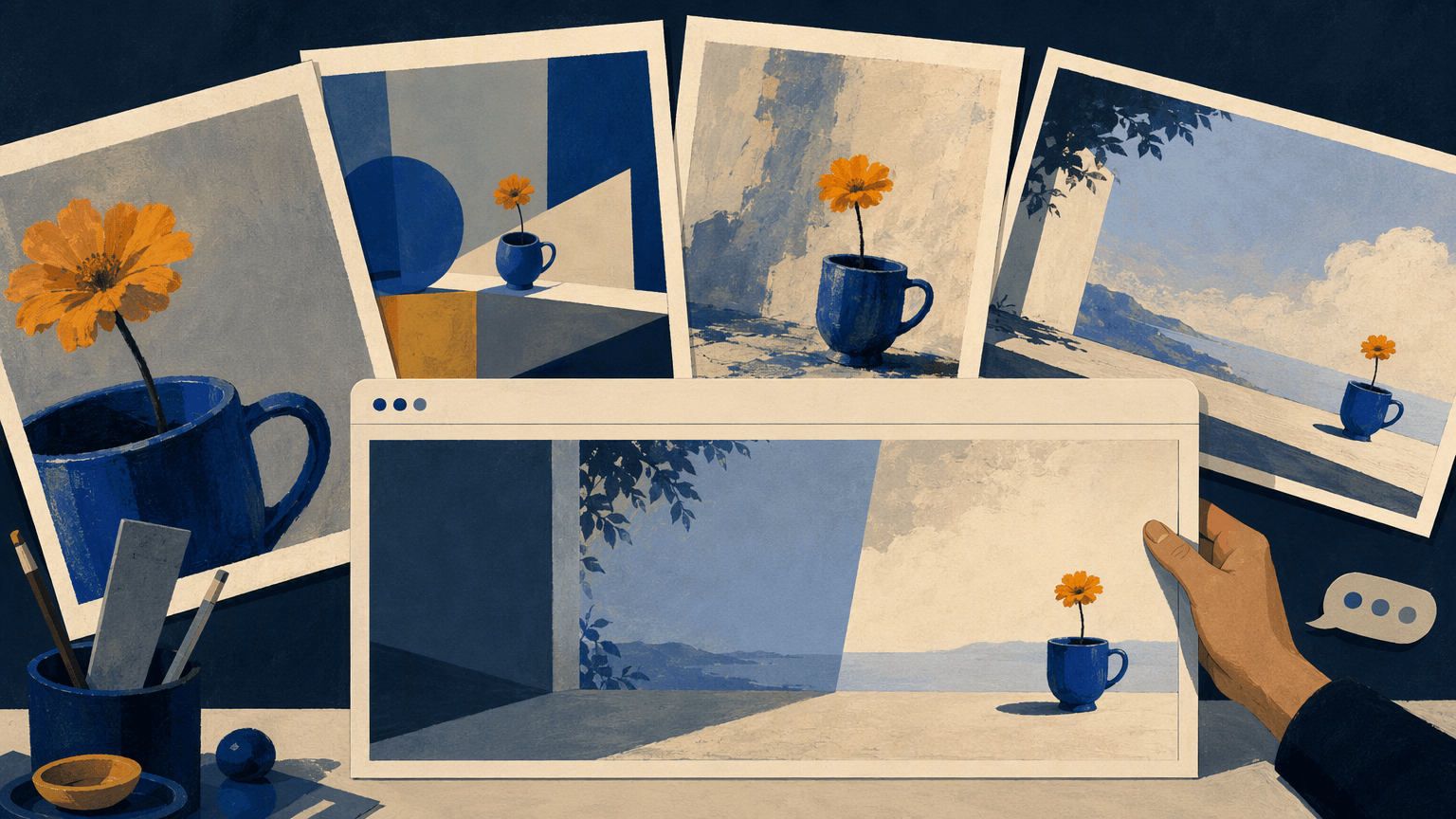
Suppose you are building a landing page for a fictional pottery workshop. The visual brief can specify a ceramic cup on the right, a restrained palette, and quiet space on the left for the page headline. The website brief can specify the booking action and how the image should behave on mobile.
Use the generated result as a candidate asset, then inspect it in the page. Does the subject survive the mobile crop? Can visitors read the headline? Is decorative imagery distracting from booking?
The verified scope does not establish every specialist image control, masked-retouching option, export format, or print workflow. Check those requirements in your current workspace; use a dedicated editor when a precise asset operation is necessary.
4. Canva: an account-specific candidate to verify
Canva is included as a candidate to check in your own account, not as a documented capability recommendation. The supplied Canva reference could not be independently read for this article, so this comparison does not assert a specific image-generation control, editing path, or delivery option.
If Canva is already part of your team’s workflow, run the same brief there and record the controls, output, usage conditions, and plan access that are currently available. Do not assume that a feature shown elsewhere or available to another account is available to yours.
5. DeepAI: for prompt-led concept exploration
DeepAI's image generator exposes a text prompt, style and shape controls, and editing or download options. That makes it another candidate for exploring a concept before committing to a finished design.
Use a concrete starting prompt, then vary one property—for example, the lighting or material treatment—to learn which direction works. Do not turn a useful concept sketch into a production asset without checking the details.
Confirm the access conditions and final output you will actually receive before committing to a batch. A compelling first result is not evidence of consistent brand reproduction, print readiness, or cleared third-party rights.
6. Adobe Firefly: an account-specific candidate to verify
Adobe Firefly is included as a candidate to evaluate when it is already part of your creative workflow. The supplied Adobe reference could not be independently read for this article, so no specific tool control, plan feature, or downstream handoff is claimed here.
Use the same controlled brief you would use elsewhere, then inspect the usable output and any handoff you require in your own account. Confirm current access, controls, and terms before making the workflow part of a production process.
Run one useful image test before choosing
A fair trial uses the same task in each tool, not a different showcase prompt designed to flatter it. Start with an asset you genuinely need and define what would make it acceptable.
For a website hero, use this illustrative brief:
Create an editorial product photograph of an unbranded matte-cream ceramic cup on a pale stone surface. Place the cup on the right side of a wide composition. Use soft daylight from the upper left and restrained shadows. Keep the left side uncluttered for website text added later. No words, logos, extra cups, or decorative lettering.
Set the intended aspect ratio in the interface if the tool provides that control. Then evaluate:
- Instruction fit: Is there one cup, in the requested position, with the requested materials?
- Composition: Is the intended text area genuinely quiet?
- Revision control: Can you change the background without unnecessarily changing the cup?
- Detail: Are edges, shadows, reflections, and surface texture plausible at the size visitors will see?
- Delivery: Can you save the file, use the required crop, and meet the placement's file requirements?
Keep the initial result, the revision instructions, and the final accepted file. Record the effort and usage involved, including discarded attempts. The best AI picture for the project is the one that passes the brief—not necessarily the one that wins a side-by-side beauty contest.
If the asset belongs in a web product, try the visual brief within an Atoms project and judge it against the page rather than in isolation.
Turn a generated image into a usable website asset
Generate the illustration or photograph separately from essential interface text. Keeping headings, labels, prices, and buttons as real page elements makes them easier to revise and test.
For a hero section, ask for a composition with room for the headline, but place the headline in the website layout. Do not rely on generated lettering for a changing offer or a critical action.
Use this finishing checklist:
- [ ] Inspect the image at its intended display size, not only as a thumbnail.
- [ ] Check both desktop and mobile crops.
- [ ] Keep the main subject clear of navigation and action buttons.
- [ ] Resize and compress the delivered asset appropriately for the page.
- [ ] Provide useful alternative text when the image communicates information; mark purely decorative imagery appropriately.
- [ ] Use real product photography when customers need an accurate representation of what they will receive.
In Atoms, the practical workflow is to describe the product and visual role, generate a candidate, revise the page, and inspect the result. Do not assume a prompt for “transparent background” or a particular resolution proves that the delivered file has those properties—verify the file itself.
If precise retouching is the problem, finish that operation in a tool that supports it rather than repeatedly changing the whole image.
Check rights, privacy, and the real cost
Generation access, permission to use inputs, and rights in the output are separate questions. No generator can resolve every trademark, likeness, copyright, or client-contract issue merely by displaying a download button.
Before uploading a reference image, confirm you are entitled to use it and that the provider's data-handling terms fit the project. Be especially careful with confidential products, unreleased campaigns, and identifiable people.
Before publication, check the current terms for the selected service and mode. Do not interpret “commercial use allowed” as a guarantee that any recognizable brand or protected material appearing in a result is cleared.
For budgeting, count generations, revisions, editing, and final delivery. Review the current Atoms plans and credit terms if image creation is part of a larger website-building workflow.
Bonus: How Atoms supports this workflow
Atoms is an AI product-building platform that turns natural-language requirements into editable websites or web applications. It supports generation, editing, and preview, so you can move from an idea to a testable product while your team retains responsibility for pre-launch review.
- Build and iterate on the core product. Describe the page, app, or interaction you need in natural language, then inspect the generated result. Ask for focused changes to layout, content, and behavior instead of restarting the project for every revision. Keep the brief narrow enough that you can verify each important path. Use the preview as a working checkpoint, not as proof that security or business rules are complete.
- Create and place visual assets in context. Atoms supports AI image generation as part of product-building workflows, so a candidate visual can be evaluated inside the page or app where it will appear. Check crop, contrast, hierarchy, and readability at the destination size. Keep critical interface copy editable rather than relying on generated lettering. Use a specialist editor when you need precise retouching or print controls.
- Coordinate a larger build without losing ownership. Atoms provides coordinated specialist agents for product-building tasks and supports code export or GitHub synchronization for handoff. Define what the first version includes, what remains out of scope, and which checks must pass before launch. Review integrations, permissions, data handling, and deployment independently. Generated work still requires an accountable human owner.
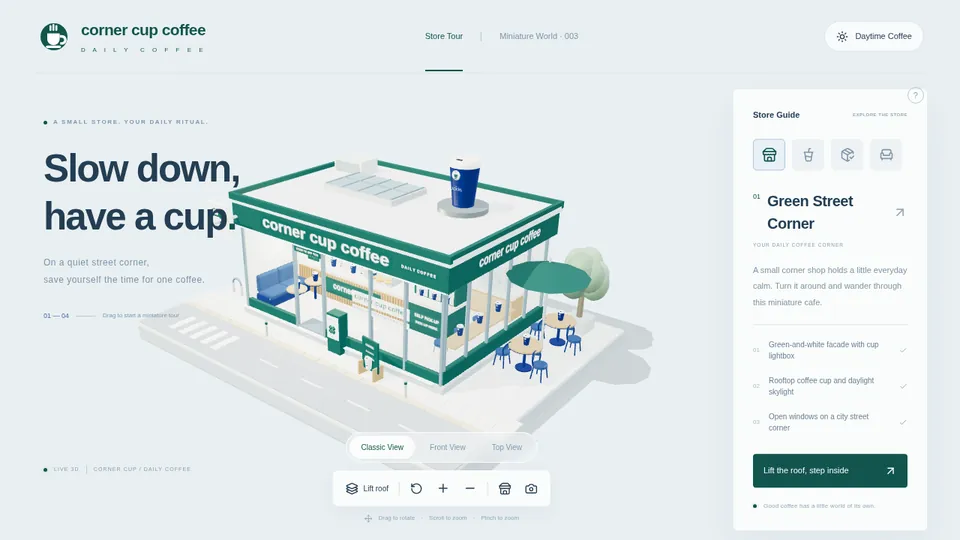
Case: A Visual Product Concept
This showcase entry is included as a concise capability example. It is not a benchmark, customer-result claim, or substitute for reviewing the project yourself.
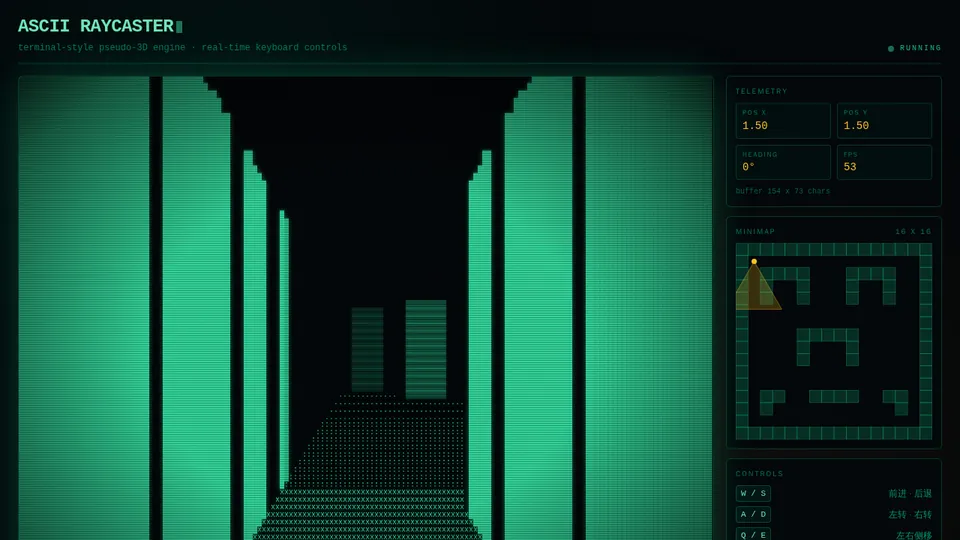
Case: A Browser Game Prototype
This showcase entry is included as a concise capability example. It is not a benchmark, customer-result claim, or substitute for reviewing the project yourself.
A little more clarity
Frequently asked questions
01Q1: Which generator is best for beginners?
Start with the interaction you can evaluate most easily. Conversational editing may fit someone who prefers written feedback; a browser editor may fit someone who wants to manipulate the image directly. Run one real brief before subscribing rather than relying on a universal beginner ranking.
02Q2: Can AI generate a finished logo?
It can help explore visual directions, but an attractive image is not automatically a usable identity system. Check small-size legibility, editable or vector deliverables, consistency, and legal suitability before treating a concept as your final logo.
03Q3: Are AI images safe for commercial use?
Check the provider's current terms, the rights in your reference material, and the contents of the result. For higher-risk commercial work, seek appropriate legal review. There is no universal clearance rule covering every tool and every output.
04Q4: Can Atoms generate images without replacing my design tools?
Yes. Atoms supports image generation within product creation. Use it for candidate visuals and their web context, while keeping specialist retouching or print-production work in tools that meet those requirements.
Related links: explore Atoms for website and app creation and its current pricing. Before scaling a visual workflow, match the plan to the work you will repeat.
Sources and availability
Research cutoff: September 7, 2026. Capability references: ChatGPT image generation, Pixlr, Canva, DeepAI, Adobe Firefly, and the Atoms platform. Recheck this comparison when editing controls, output options, access limits, or usage terms change. No hands-on quality scores or fixed plan prices are claimed.
Share this article
 Posts
Posts 